Installing the SmarterMail Profile on your IOS device
AFTER you have clicked the download button to get the installer file, you will have to follow these install steps. Its 10 steps but very simple. The ONLY thing you need to do on step 8 is enter your password, the rest is just confirmations.
Click here to go back to ios installer
Click here to go back to setup assistant
GET STARTED WITH SMARTERMAIL PROFILE INSTALLER
At this point you will have clicked the download button in the installer tool.
-
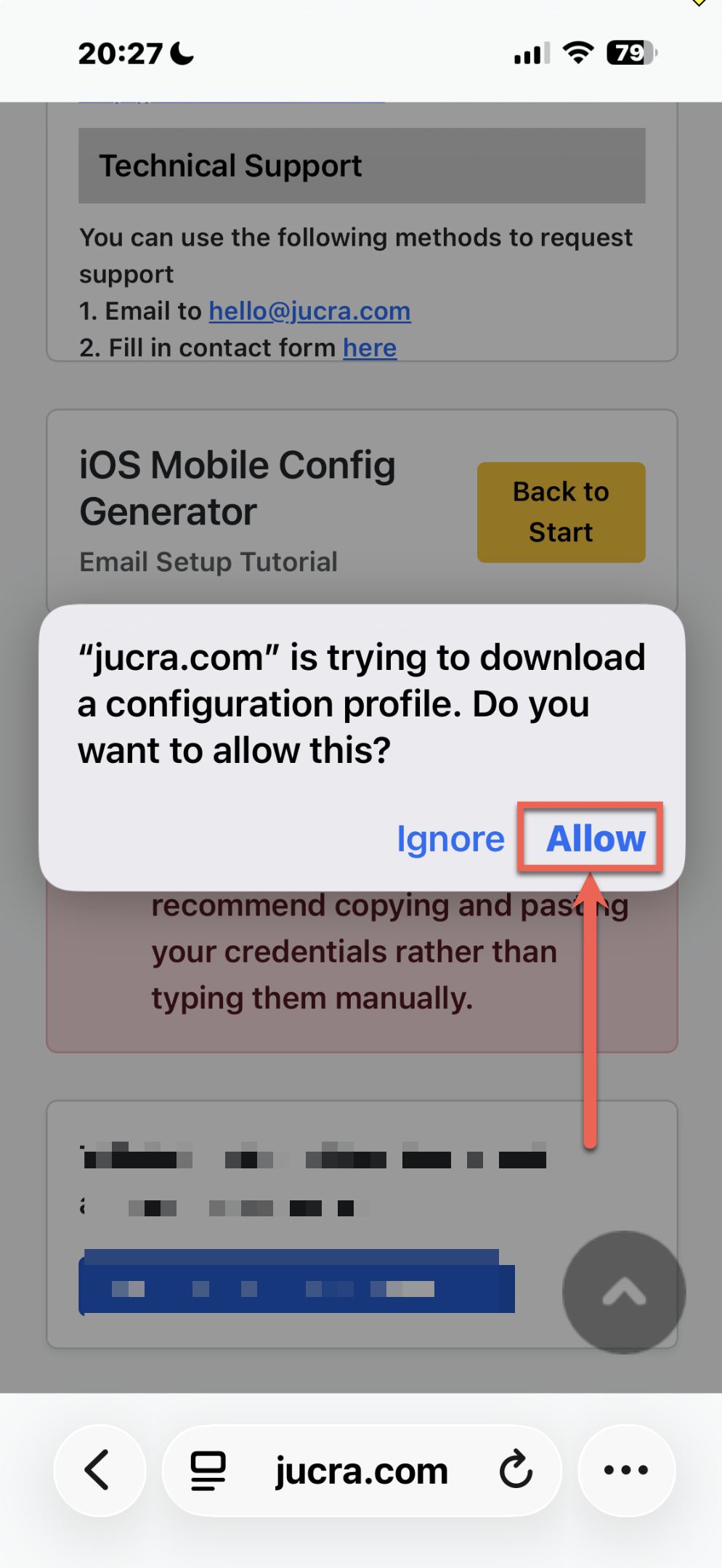
Click allow the config file to be downloaded.
-
Close the window and then go to Settings.
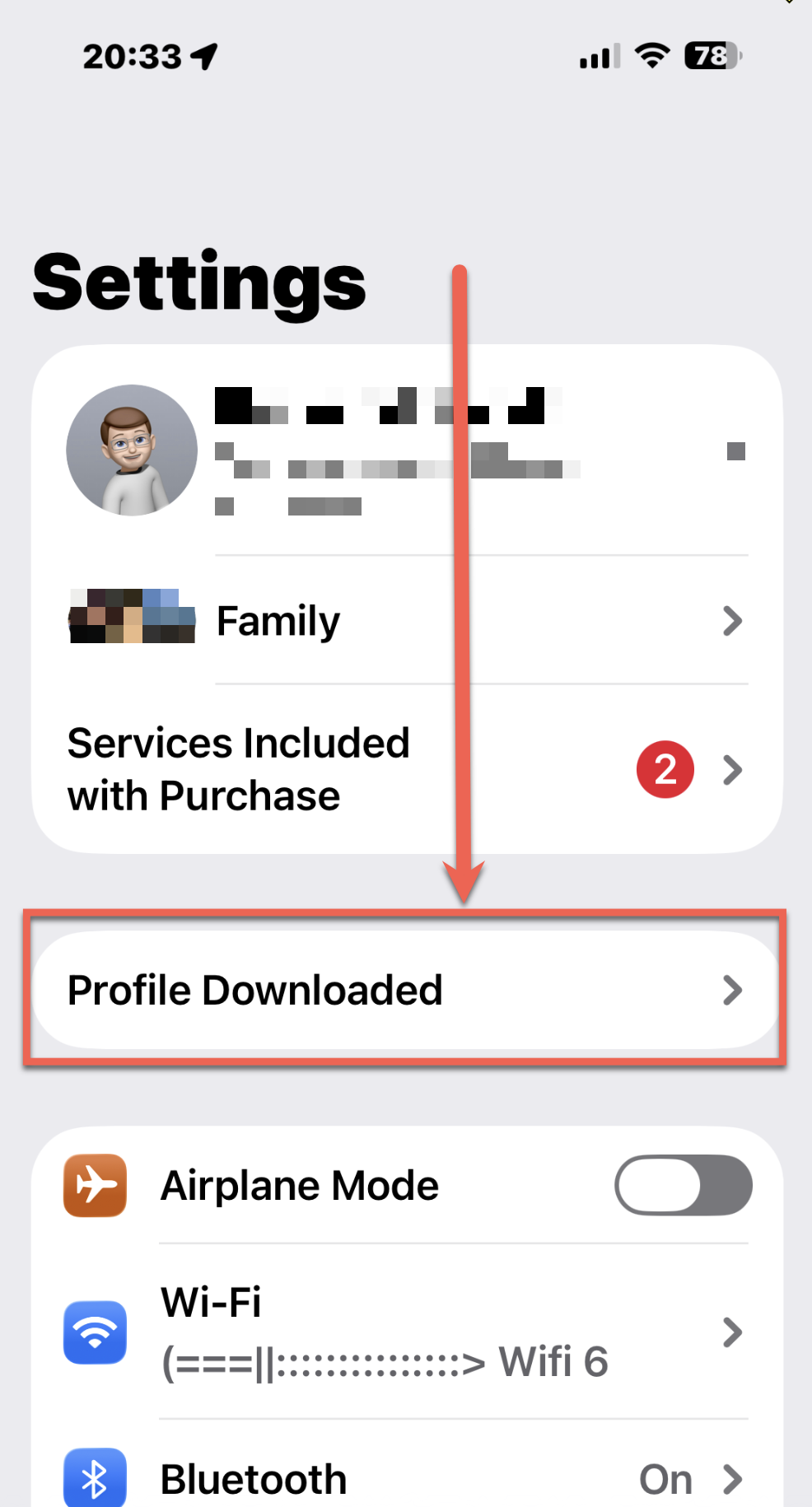
In your iphone this will be: Settings → General → VPN & Device Management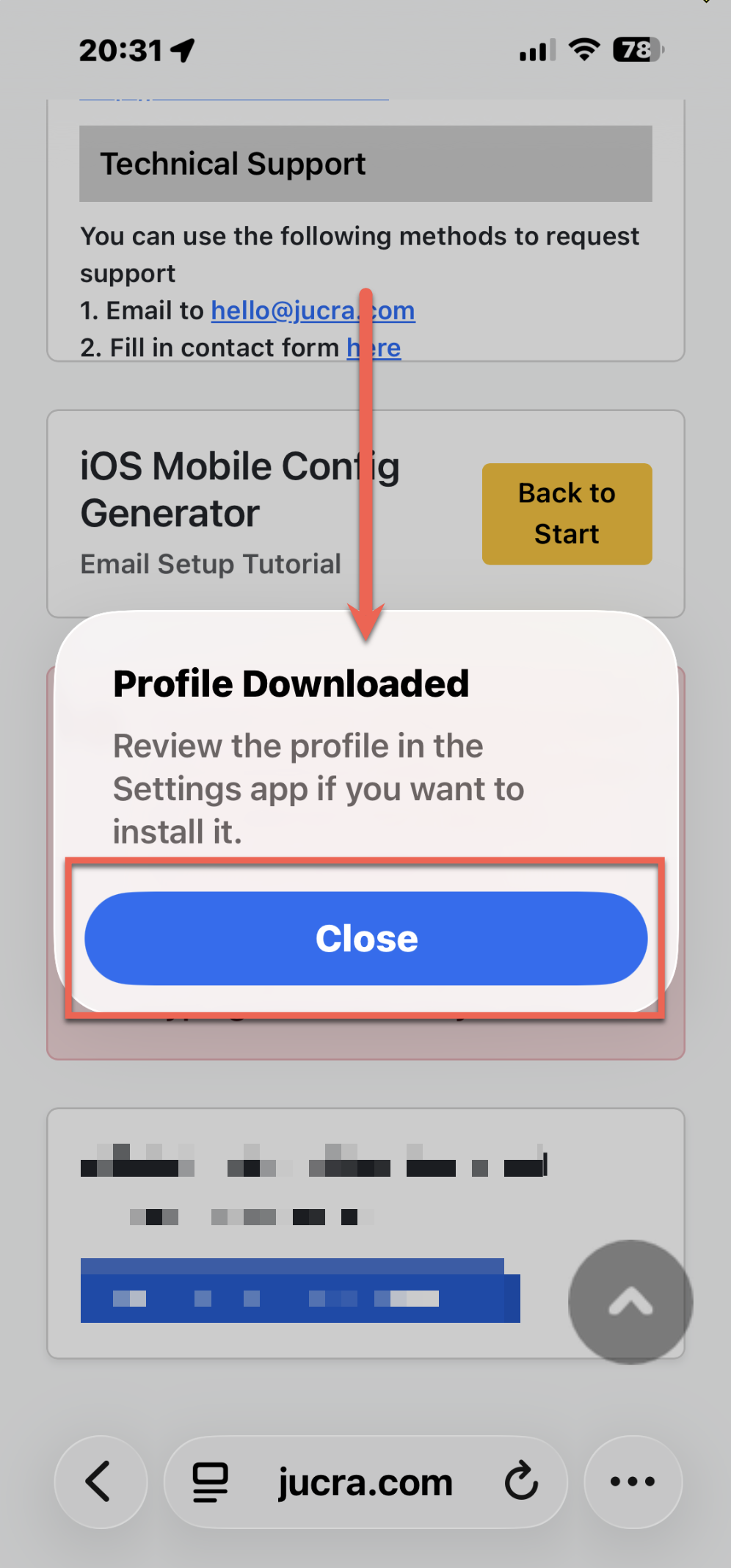
-
Now you will see a new profile added under Settings. Click through to the profile.
-
Click to install it.
You can ignore the unsigned warning.
You have downloaded the profile from our secure system.
This message is expected.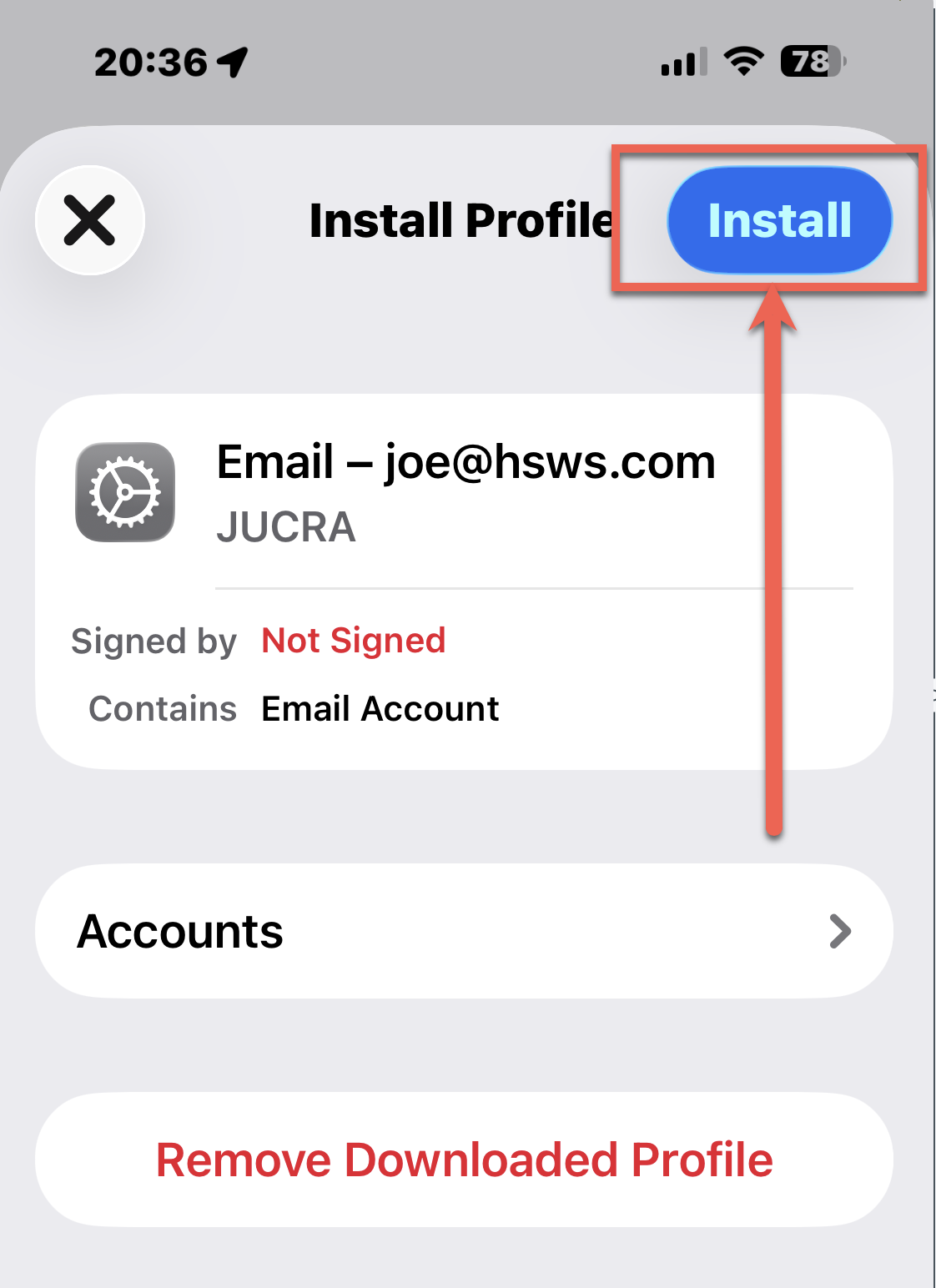
-
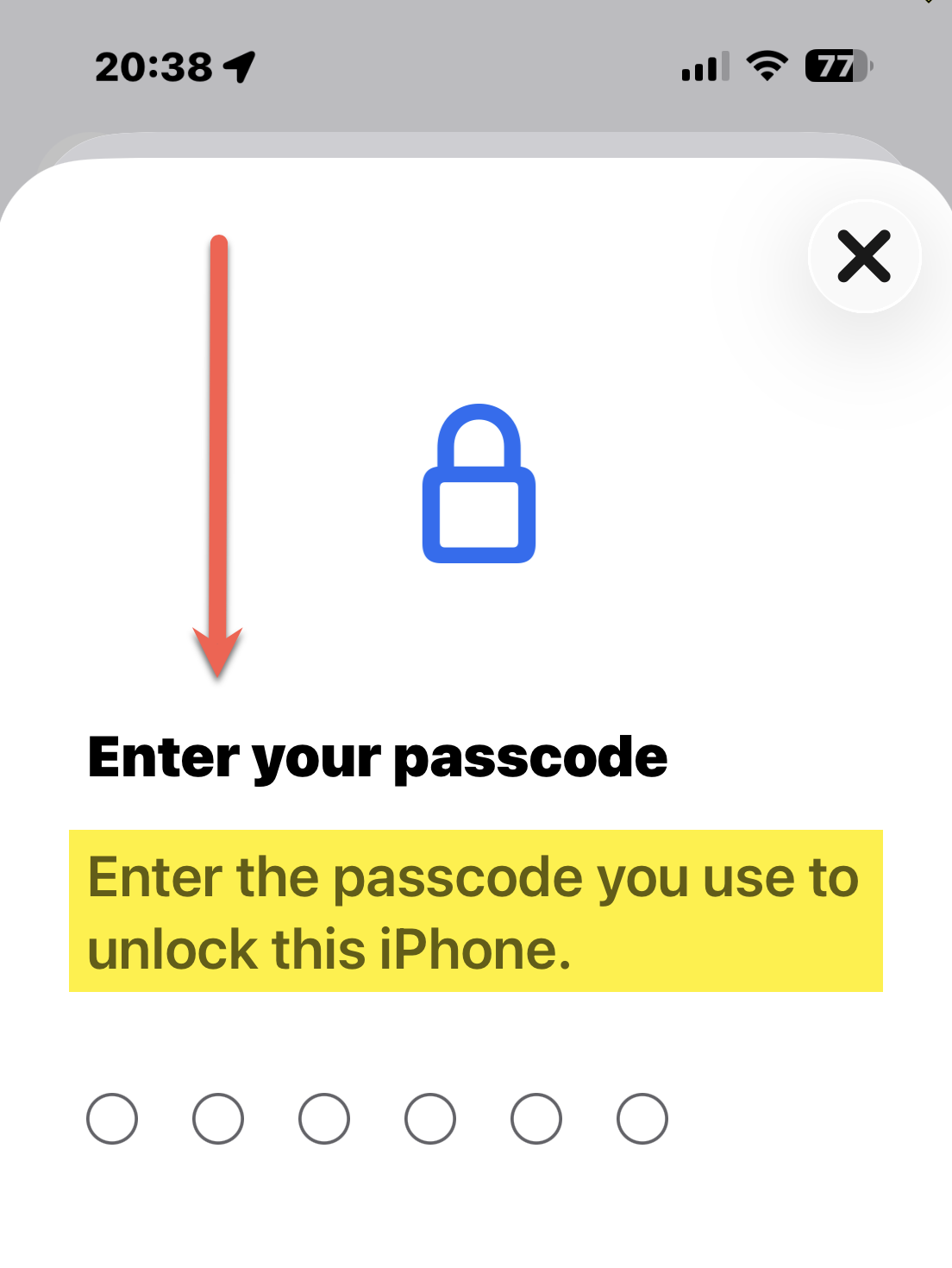
You might be asked to enter your phone password here.
-
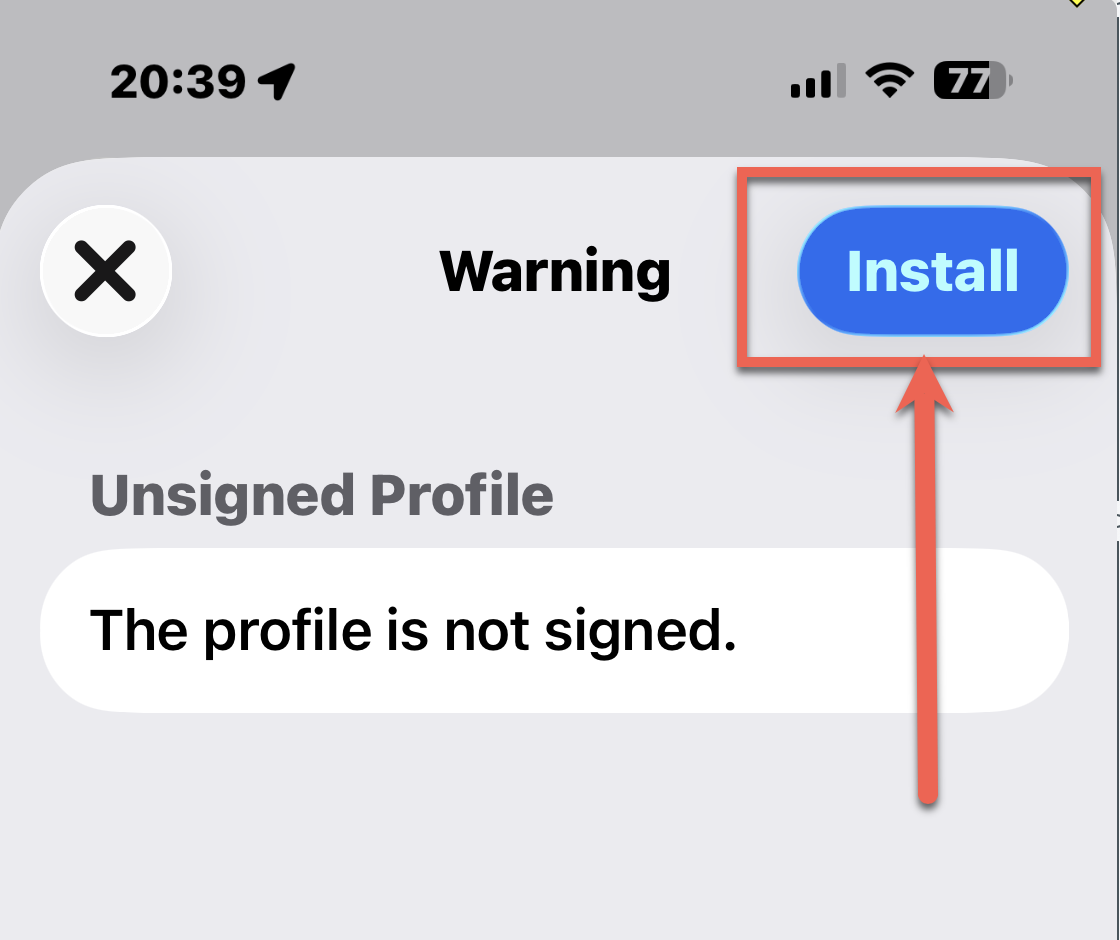
Click the install button again.
-
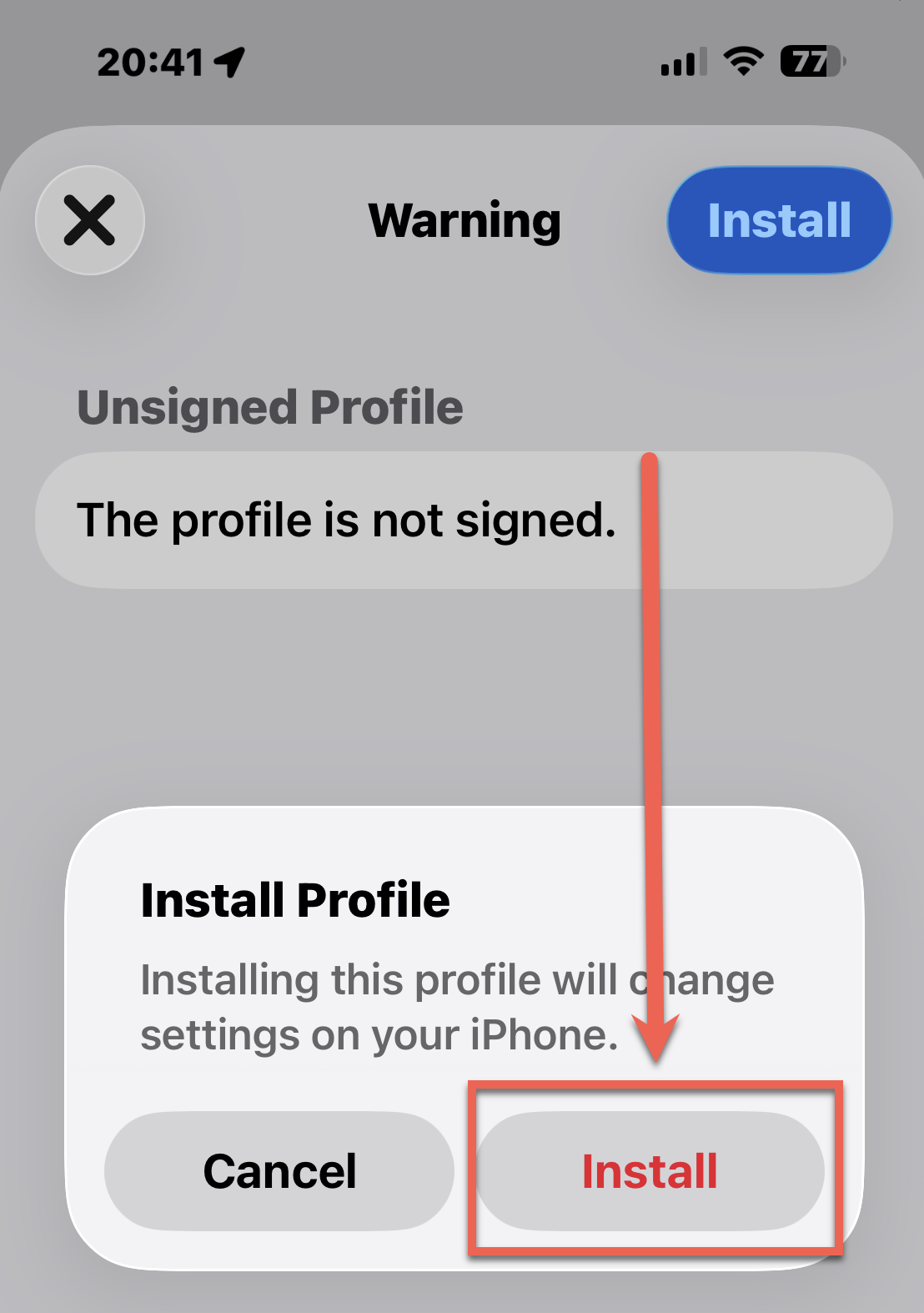
Click the final install button.
-
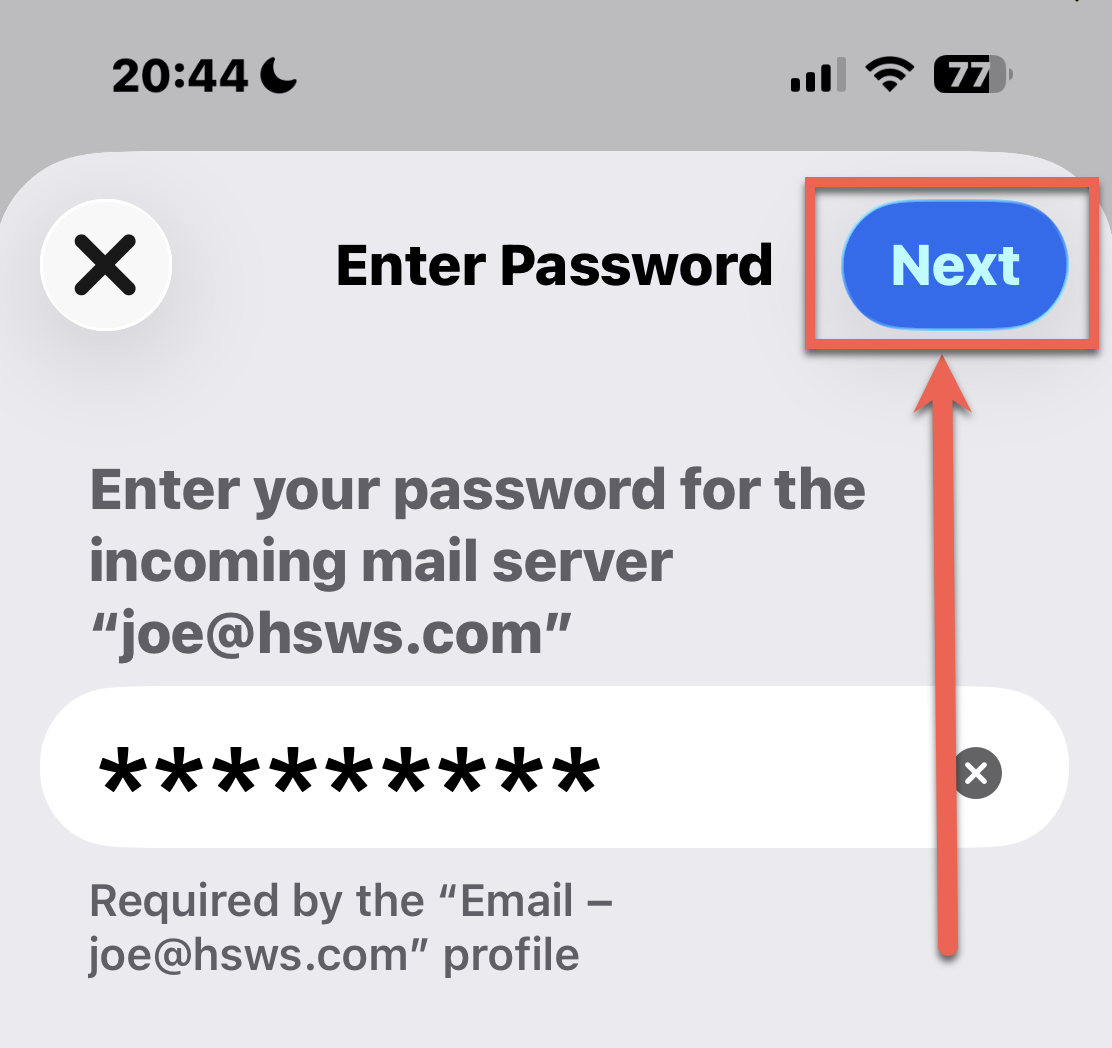
Now you will be asked to enter your email password, then click Next.
-
Then you will see the message saying the profile was installed.
Now you can click through to the account and view all the settings or exit and go to Mail.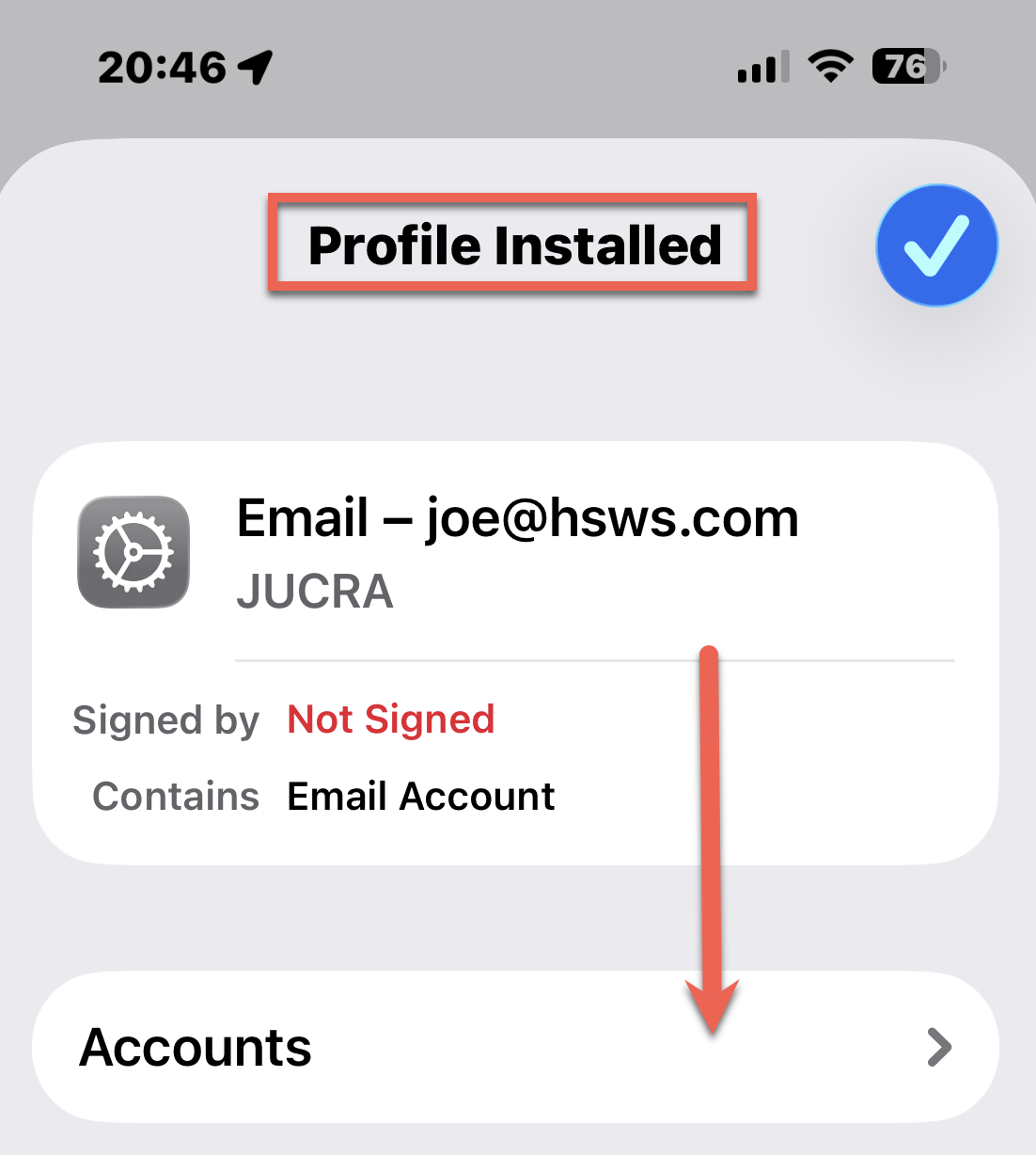
-
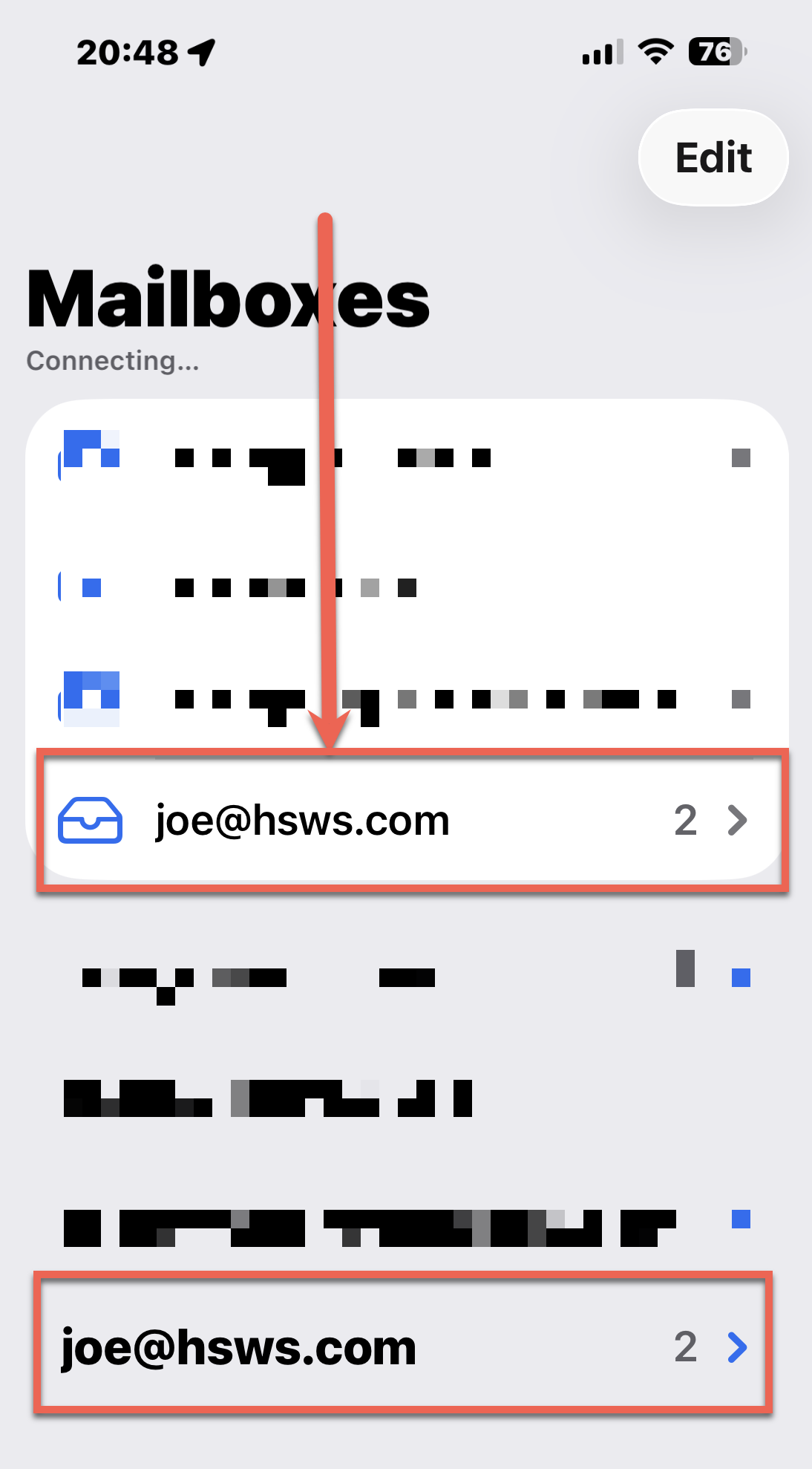
Inside of Mail you will see the account and you can send and receive.