
Cloudflare allows you to safely grant access to your account without sharing your username, password, or two-factor authentication codes.
This is the recommended method when JUCRA Digital needs to make DNS changes, configure email services, troubleshoot domain issues, or perform website-related work on your behalf.
Table of Contents
1. Why Delegate Access?
There are many situations where JUCRA Digital may require access to your Cloudflare account, including:
- Configuring DNS records
- Setting up website hosting
- Migrating email services
- Configuring SPF, DKIM and DMARC records
- Setting up SSL certificates
- Troubleshooting website or email delivery issues
- Connecting third-party services
- Managing Cloudflare security settings
Delegated access allows us to perform these tasks without requiring you to share your login credentials.
2. Before You Start
Before continuing, please ensure:
- You can successfully log in to your Cloudflare account.
- Your email address has been verified within Cloudflare.
- You have administrative access to the account.
If you cannot access your Cloudflare account, please contact Cloudflare support before proceeding.
3. Granting Access to JUCRA Digital
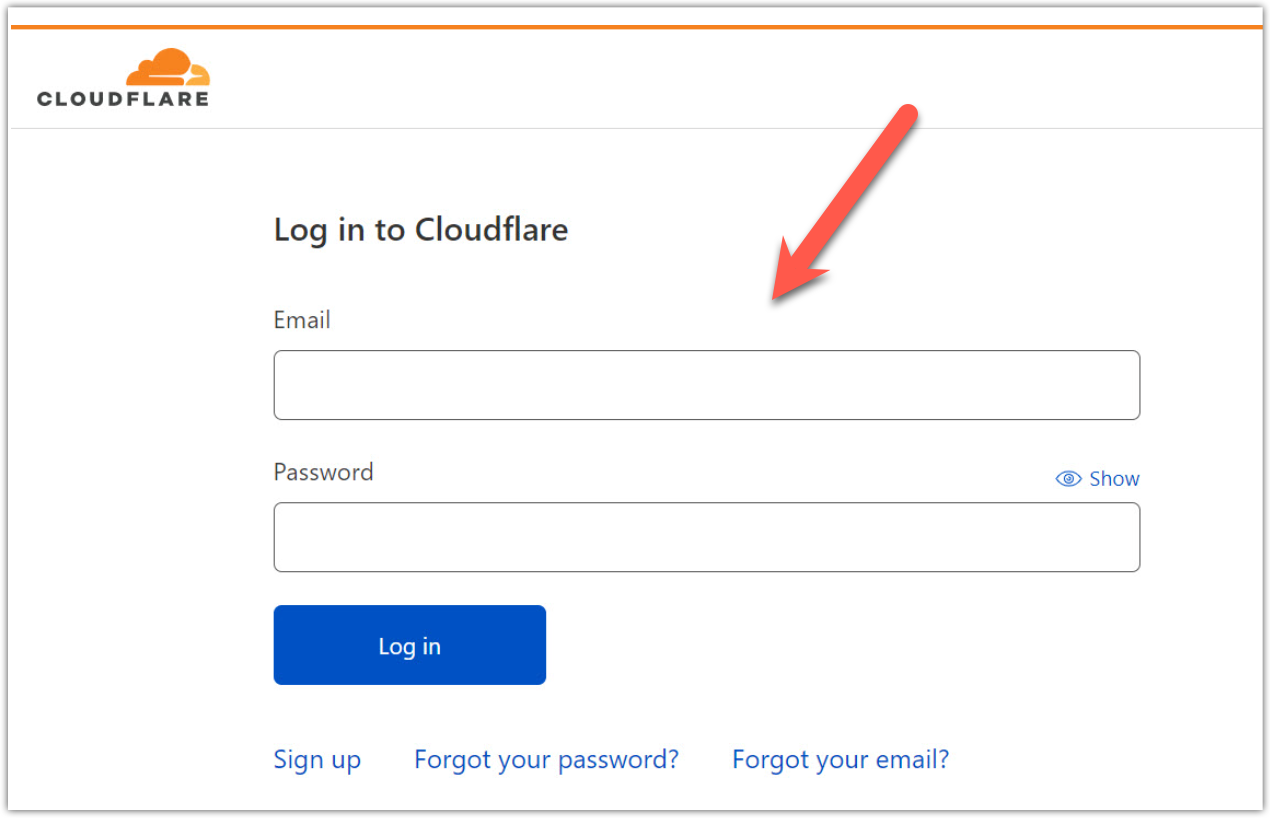
Step 1 - Log in to Cloudflare
Log in to your Cloudflare dashboard:
https://dash.cloudflare.com
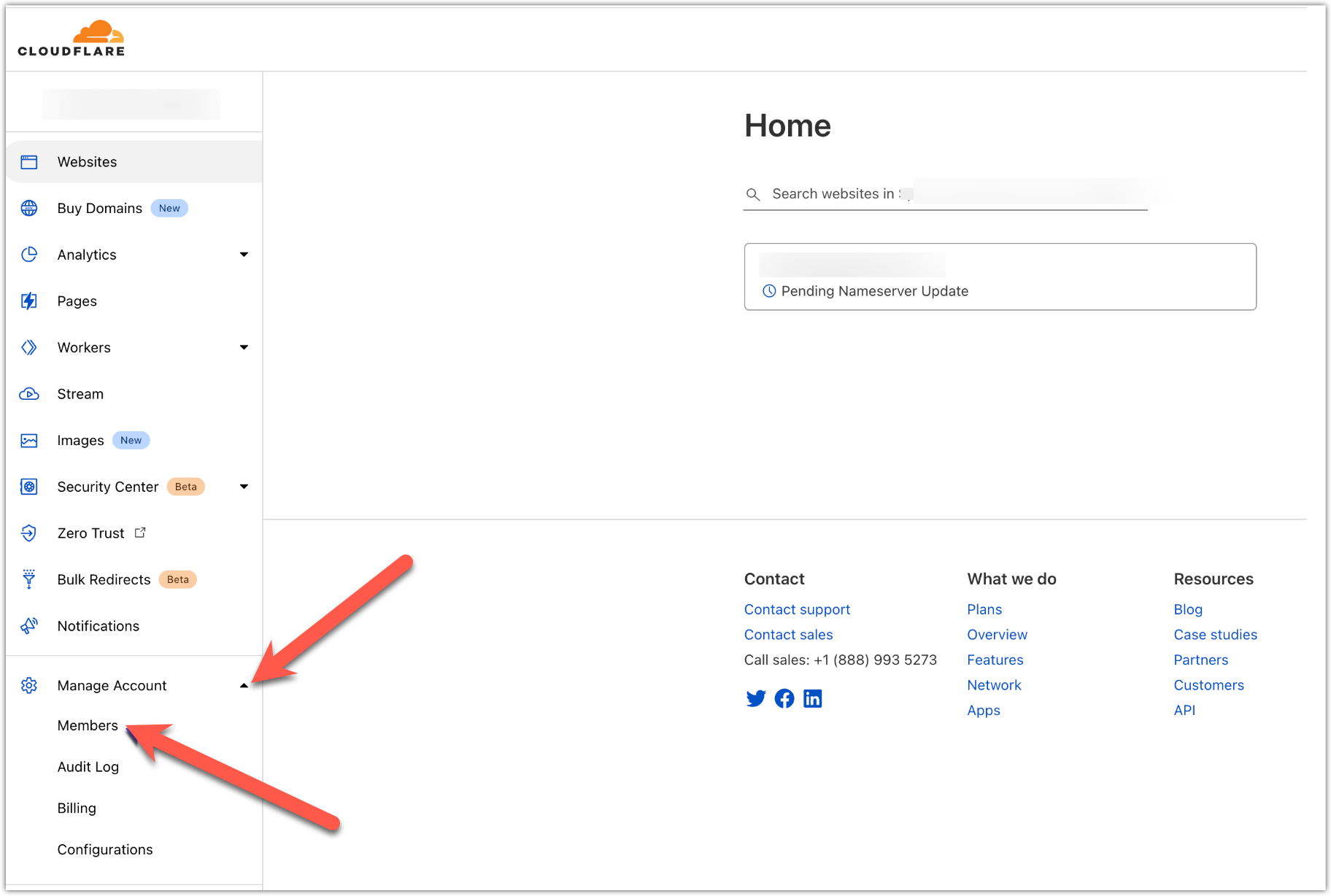
Step 2 - Open the Members Section
Once logged in:
- Click Manage Account.
- Select Members from the menu.
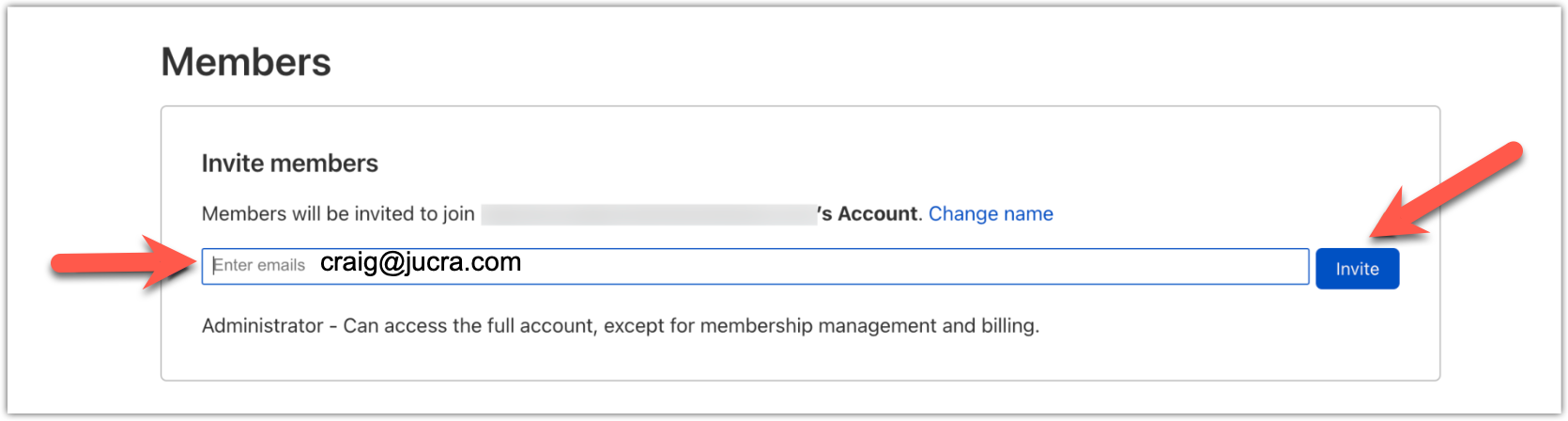
Step 3 - Invite JUCRA Digital
Click the Invite button.
Enter the following email address:
Step 4 - Select Permissions
For most support cases, JUCRA Digital only requires DNS-related access.
Depending on your Cloudflare plan and account structure, you may see options such as:
- DNS
- Domain Administrator
- Administrator
- Read Only Access
If you are unsure which role to select, please contact JUCRA Digital and we will advise you.
Add them as: Domain Administrator
Step 5 - Review and Send Invitation
Click Continue to Summary, review the permissions, then click Invite.
Cloudflare will send an invitation email to JUCRA Digital.
Once accepted, we will be able to access the areas you have authorised.
4. Roles and Permissions
Cloudflare supports multiple permission levels.
| Role | Typical Use |
|---|---|
| Read Only | View settings without making changes. |
| DNS | Manage DNS records only. |
| Domain Administrator | Manage settings for a specific domain. |
| Administrator | Manage most settings within the account. |
| Super Administrator | Full account control including billing and member management. |
5. Removing Access Later
You can revoke access at any time.
- Log in to Cloudflare.
- Go to Manage Account > Members.
- Locate the JUCRA Digital member account.
- Click the member entry.
- Select Revoke Access.
- Confirm the removal.
Access will be removed immediately.
6. Security Recommendations
- Never share your Cloudflare password with third parties.
- Use delegated access instead of sharing login credentials.
- Enable Two-Factor Authentication on your Cloudflare account.
- Review account members periodically.
- Remove access for users or companies that no longer require it.