
As of August 2026, JUCRA Digital shared hosting servers no longer support traditional FTP connections. All file transfers must now use SFTP (SSH File Transfer Protocol) with SSH key authentication.
Why Does JUCRA now Require SFTP?
Traditional FTP is an old protocol that was not designed around modern security requirements. Standard FTP can expose authentication credentials and transferred data and requires additional publicly accessible server services.
SFTP operates through SSH and provides encrypted communication between your computer and the hosting server.
Requiring SFTP with SSH key authentication provides several security benefits:
- File transfers are encrypted.
- Authentication credentials are not transmitted using traditional FTP authentication.
- SSH keys provide significantly stronger authentication than reusable FTP passwords.
- Automated password-based attacks against FTP services are eliminated.
- Fewer internet-facing services are required on our shared hosting infrastructure.
- The overall attack surface of the hosting platform is reduced.
Traditional FTP was permanently retired across JUCRA Digital shared hosting servers on 18 August 2026 as part of our ongoing programme of removing legacy services where more secure alternatives are available.
You can review our announcment here: https://jucra.com/whmcs/announcements/165/
In Summary
To access files on a JUCRA Digital shared hosting server, remember:
SFTP + Custom SSH Port + cPanel Username + Authorised SSH Key
Changing an old FTP connection to "SFTP" without configuring the SSH key and correct port is not sufficient.
Important: Simply Changing FTP to SFTP Will Not Work
SFTP operates over SSH and uses a different authentication method from traditional FTP.
To connect successfully you must use SFTP, the custom SSH/SFTP port assigned to your hosting server, your cPanel username, and an SSH key that has been authorised inside cPanel.
Before You Start
You will need:
- Your hosting server hostname.
- Your cPanel username.
- The custom SSH/SFTP port assigned to your hosting server.
- An SSH public/private key pair.
- Your public SSH key installed and authorised inside cPanel.
- Your private SSH key securely stored on your computer.
- An SFTP-compatible application such as FileZilla, Cyberduck, WinSCP or Transmit, or an SSH/SFTP client through Terminal.
Do not use FTP, FTPS or port 21. Standard FTP has been permanently disabled on JUCRA Digital shared hosting servers.
Successful Connection Checklist
- ✓ Protocol is SFTP – SSH File Transfer Protocol.
- ✓ You are using the correct server hostname.
- ✓ You are using the custom SSH/SFTP port supplied for the server.
- ✓ You are using your cPanel username.
- ✓ Your SSH public key has been added to cPanel.
- ✓ Your SSH public key has been authorised inside cPanel.
- ✓ The corresponding private key is available on your computer.
- ✗ You are not attempting to authenticate using your old FTP password.
GET STARTED HERE
Follow th steps below to generate your keys, authorise the keys into cpanel and prpoeare your FTP software
First, log in to the cPanel account associated with your hosting service. This area allows you to create, import and manage the SSH keys permitted to access your hosting account. An SSH key pair consists of two related keys:Step 1 — Open SSH Access in cPanel
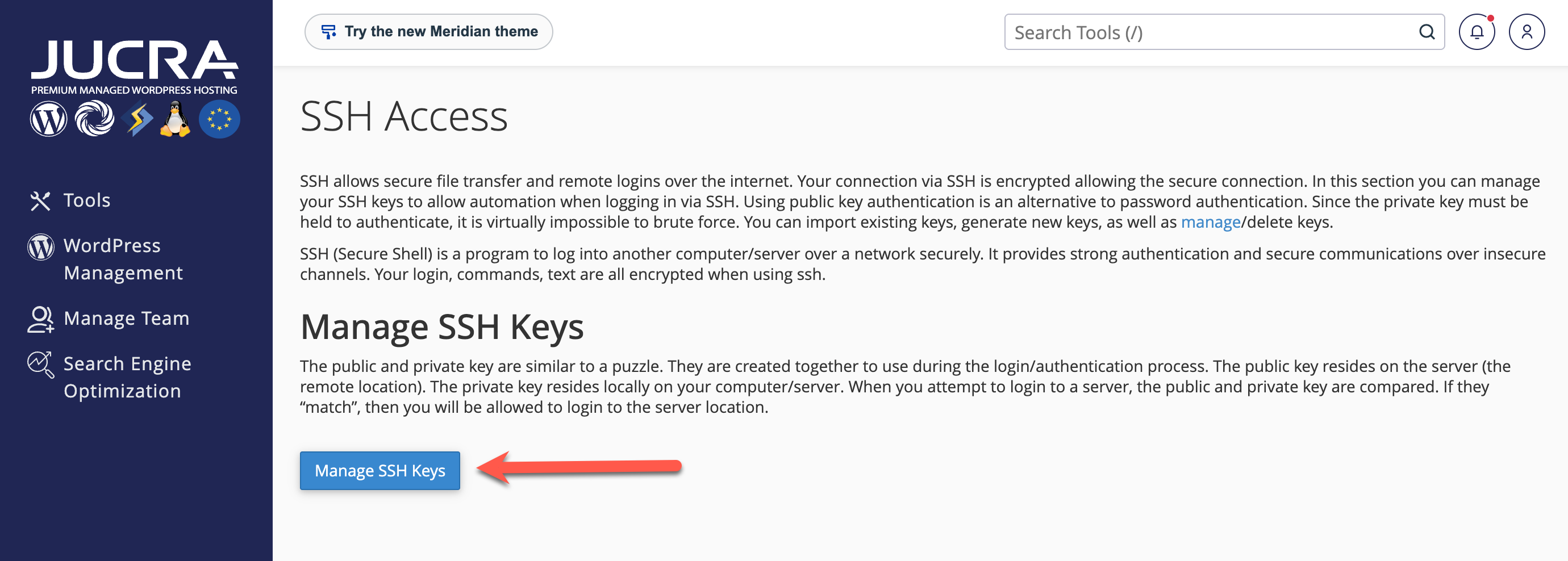
What is an SSH key?
You can generate an SSH key directly inside cPanel or create one on your computer and import the public key into cPanel. For most customers, generating the key directly inside cPanel is the easiest option. Generating an SSH key does not automatically authorise it. You must complete Step 3 and explicitly authorise the key before it can be used. Open Terminal and run: Follow the prompts displayed in Terminal. Unless you have a specific reason to change the location, you can use the suggested location. Alternatively, give the key a descriptive filename: This creates two files: The file ending in .pub is your public key. The file without .pub is your private key. Current versions of Windows normally include the OpenSSH tools required to generate an SSH key. Open Windows Terminal or PowerShell and run: Follow the prompts. The public key will have a .pub extension. The corresponding file without the extension is your private key. Your private SSH key should remain securely on your computer. Never email it, upload it publicly, or send it to JUCRA Digital or another third party. If you generated your SSH key on your computer, you must import the public key into cPanel. The file ending in .pub is the public key. Your private key should remain securely on your computer.Step 2 — Create Your SSH Key (Skip this if you already have a public key)
1. You can generate a new one within cpanel.
2. you can generate one from your local machine.
NOTE: if you are a pro and already have a local key on your machine, just skip this step.strong>Option A — Generate the SSH Key in cPanel
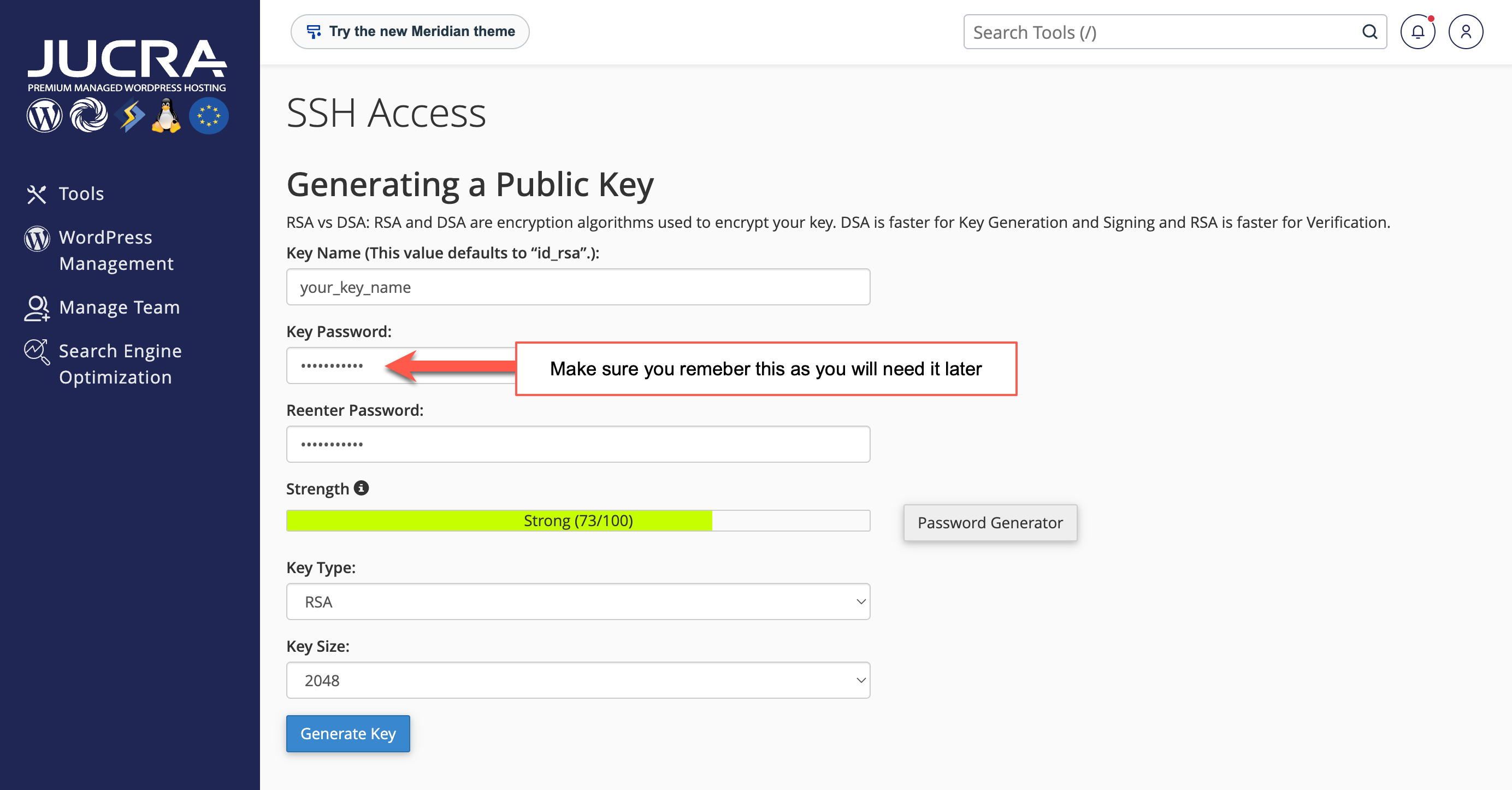
Important: You Are Not Finished Yet
Option B — Generate the SSH Key on macOS or Linux
ssh-keygen -t ed25519ssh-keygen -t ed25519 -f ~/.ssh/jucra_hosting~/.ssh/jucra_hosting
~/.ssh/jucra_hosting.pubOption C — Generate the SSH Key on Windows
ssh-keygen -t ed25519Never Share Your Private SSH Key
Importing a Locally Generated Public Key into cPanel
An SSH key can exist inside cPanel without being authorised. If the key has not been authorised, your SFTP connection will fail. After creating or importing your public key: Importing or generating a key is not the same as authorising it. You must explicitly click Authorize.Step 3 — Authorise Your SSH Key in cPanel
This Step Is Essential
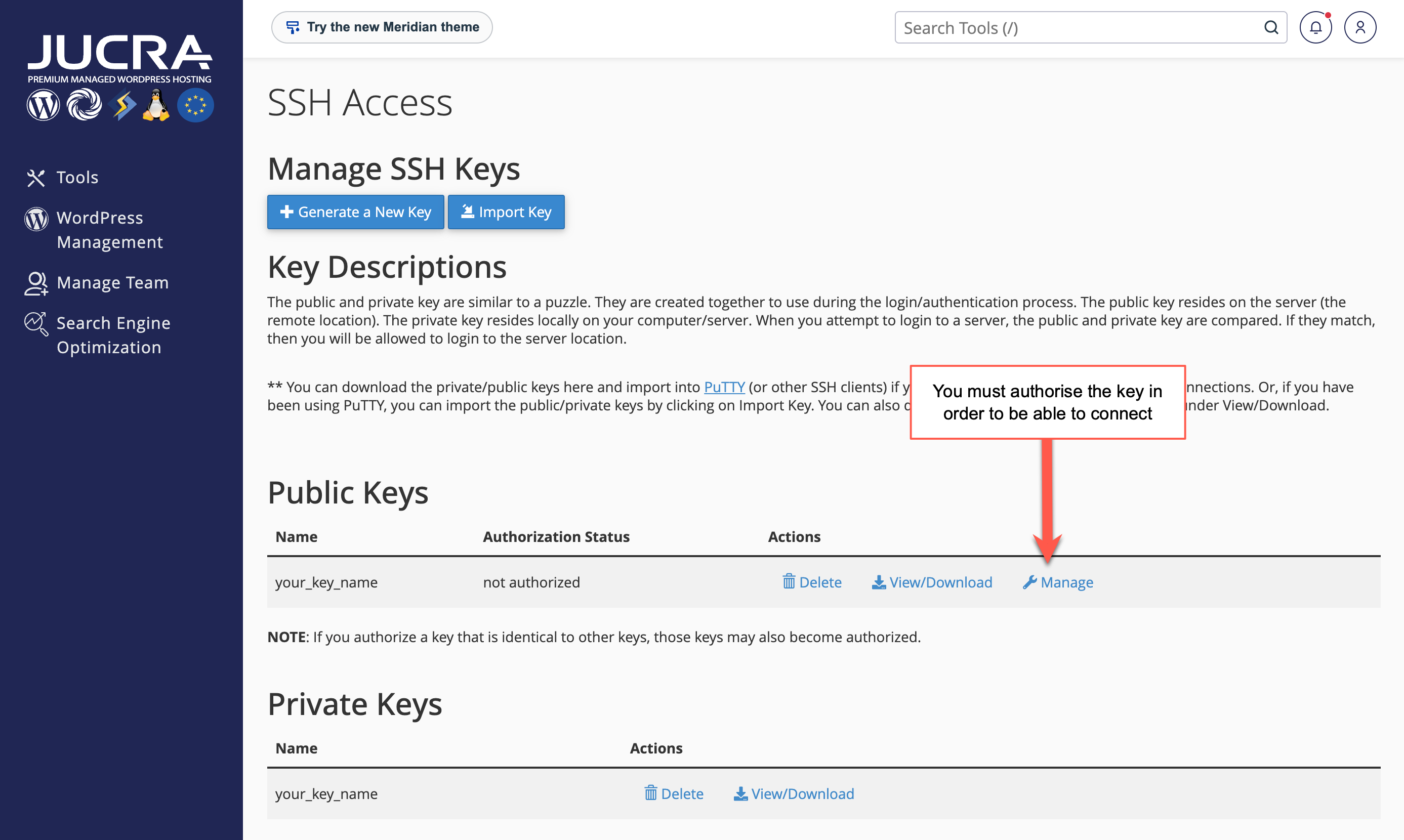
Common mistake:
The computer connecting to the server must have the private key corresponding to the public key you authorised inside cPanel. You should already have the private key stored on your computer. For example, if your public key is: Your corresponding private key is normally: Return to: cPanel → SSH Access → Manage SSH Keys Locate the appropriate private key and use the options provided by cPanel to view or download it. The private key is your authentication credential. Do not email it, publish it or share it with another person. If SSH reports that your private key permissions are too open, run: Replace jucra_hosting with the actual filename of your private key.Step 4 — Obtain Your Private SSH Key
If You Generated the Key on Your Computer
~/.ssh/jucra_hosting.pub~/.ssh/jucra_hostingIf You Generated the Key Inside cPanel
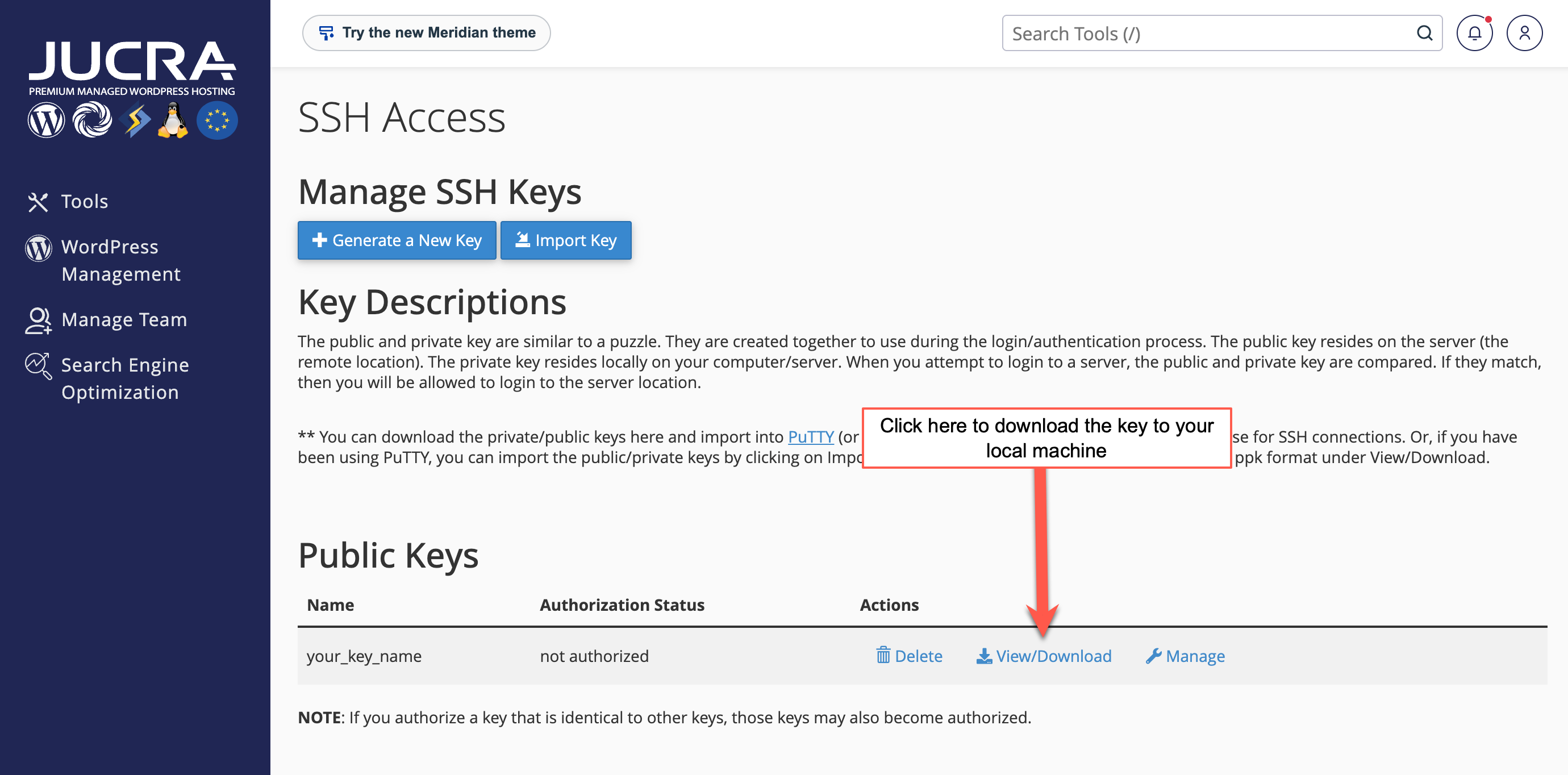
Keep Your Private Key Secure
Private Key Permissions on macOS/Linux
chmod 600 ~/.ssh/jucra_hosting
Most modern FTP programs support SFTP connections using SSH key authentication. Opening your old FTP connection and changing the protocol from FTP to SFTP is not sufficient. You must also configure the custom SSH/SFTP port and SSH key authentication. TRANSMIT FTP EXAMPLE Click Connect. The first time you connect, your ftp software may display the server's SSH host key and ask whether you trust the server. Review the information displayed and, if correct, accept the server key to continue. If your private SSH key is protected with a passphrase,your ftp software may ask you to enter the SSH key passphrase. An SSH key passphrase is the passphrase protecting your private key. It is not your old FTP or cPanel password.Step 5 — Connect Using FileZilla/Transmit FTP
Do Not Simply Reuse Your Old FTP Settings
Create a New Connection
Enter Your Connection Details
Protocol
SFTP – SSH File Transfer Protocol
Address/Host
Your hosting server hostname
Port
The custom SSH/SFTP port supplied fby JUCRA (ask us)
Logon Type/Key
Key file
User Name
Your cPanel username
Key file
Select the private SSH key stored on your computer
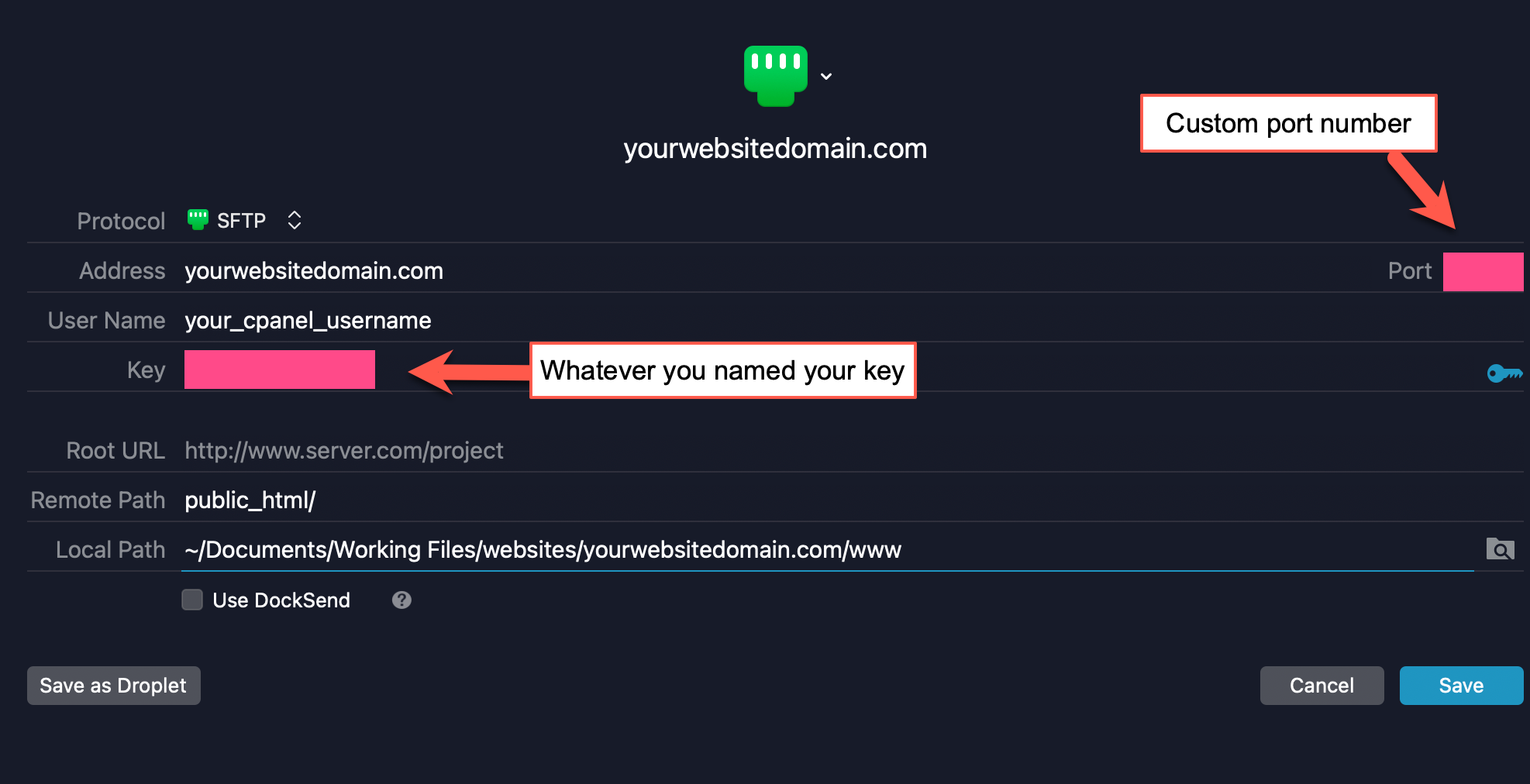
Your FTP Software Settings Should Be:
Connect to the Server
Users comfortable with the command line can connect directly using SSH or SFTP. Replace: The command-line SFTP client uses an uppercase -P when specifying a custom port.Step 6 — Connect Using Terminal
Connect Using SSH
ssh -p [SSH-PORT] -i ~/.ssh/jucra_hosting CPANEL_USERNAME@SERVER_HOSTNAMEConnect Using SFTP
sftp -P [SSH-PORT] -i ~/.ssh/jucra_hosting CPANEL_USERNAME@SERVER_HOSTNAME
Changing the protocol alone is not sufficient. Your connection must use all of the following: This is expected. Traditional FTP and password-only FTP authentication are no longer available on JUCRA Digital shared hosting servers. SFTP operates over SSH and requires an authorised SSH key. This normally indicates an SSH key authentication problem. Check that: Simply importing or generating an SSH key inside cPanel does not authorise it. Go to SSH Access → Manage SSH Keys → Manage → Authorize. Check that you are using: Do not use the standard FTP port. First confirm that you are using the correct custom SSH/SFTP port supplied for your hosting server. If the hostname, protocol and port are correct but the connection continues to time out, please contact JUCRA Digital Support and provide the exact error message displayed by your SFTP application. Check your FileZilla Site Manager configuration. The connection should use: If your private key itself is protected by a passphrase, FileZilla may legitimately ask for that key passphrase. The SSH key passphrase is not your old FTP password. Creating a key does not automatically authorise it. Return to: cPanel → SSH Access → Manage SSH Keys Locate the public key, click Manage and confirm that the key has been authorised. Imported public keys must also be explicitly authorised inside cPanel before they can be used. Go to: cPanel → SSH Access → Manage SSH Keys → Manage → Authorize The .pub file is your public key and belongs on the server. FileZilla needs access to your corresponding private key. For example: is the public key, while: is the corresponding private key. Your private key should remain securely stored on the computer from which you connect. No. SFTP access to JUCRA Digital shared hosting servers requires SSH key authentication. Your cPanel username is used to identify your hosting account, but authentication is performed using your authorised SSH key. No. Standard FTP has been permanently retired across JUCRA Digital shared hosting servers. No. Customers should use SFTP over SSH. Although the names are similar, FTPS and SFTP are different technologies. This service specifically requires SFTP.Troubleshooting — My SFTP Connection Does Not Work
I changed FTP to SFTP but it still doesn't work
My normal FTP username and password don't work
I receive "Permission denied (publickey)"
I receive "Connection refused"
My connection times out
FileZilla keeps asking me for a password
I created an SSH key in cPanel but it doesn't work
I imported my public key but it doesn't work
I selected my .pub file in FileZilla
jucra_hosting.pubjucra_hostingCan I use my cPanel password instead?
Can I continue using standard FTP?
Can I use FTPS instead?
Still Unable to Connect?
Before contacting support, please confirm that you have completed every item in the following checklist:
- ✓ I am using SFTP – SSH File Transfer Protocol.
- ✓ I am using the correct hosting server hostname.
- ✓ I am using the custom SSH/SFTP port supplied for the server.
- ✓ I am using my cPanel username.
- ✓ I have created or imported an SSH public key.
- ✓ I have authorised the public key inside cPanel.
- ✓ I have the corresponding private key on my computer.
- ✓ I have selected the private key, not the .pub file, in my SFTP application.
- ✓ My SFTP application is configured to use key-file authentication.
- ✓ I am not attempting to connect using standard FTP or FTPS.
If All of the Above Are Correct
If you have completed every step above and are still unable to connect, please contact JUCRA Digital Support.
When contacting support, please provide:
- Your hosting domain name.
- The SFTP application you are using.
- Your operating system.
- The exact error message displayed by your SFTP application.
- A screenshot of your connection settings, if possible.
Do not include your private SSH key.
Security Reminder
Your private SSH key should always remain private.
JUCRA Digital Support may ask to see your SFTP configuration or your public SSH key when troubleshooting a connection, but we will never require you to email your private SSH key to us.
Never send your private SSH key by email, support ticket, instant message or any other communication method.