
You are reading this article because you have received a spam email in your SmarterMail inbox and would like to mark it as spam or report it correctly.
Spam is unfortunately a normal part of email communication today and is extremely difficult to eliminate completely. Spam filtering is always a careful balance between blocking unwanted messages and ensuring legitimate emails are delivered safely to your inbox.
Even with multiple filtering layers and protection mechanisms in place, some spam messages may still get through. When this happens, reporting the message properly helps improve filtering accuracy over time.
Below we explain how to report spam using the SmarterMail webmail interface.
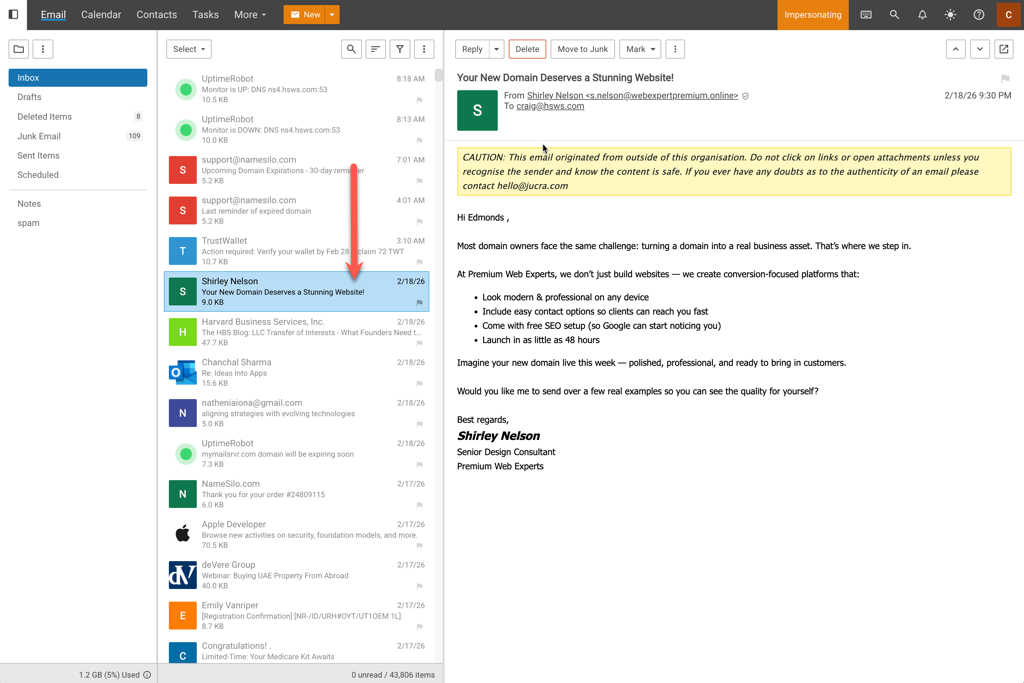
Step 1: Open the Email
-
Log in to your SmarterMail webmail account.
-
Navigate to your Inbox.
-
Click on the spam email to open it, or select it using the checkbox next to the message.
Step 2: Mark the Email as Spam
-
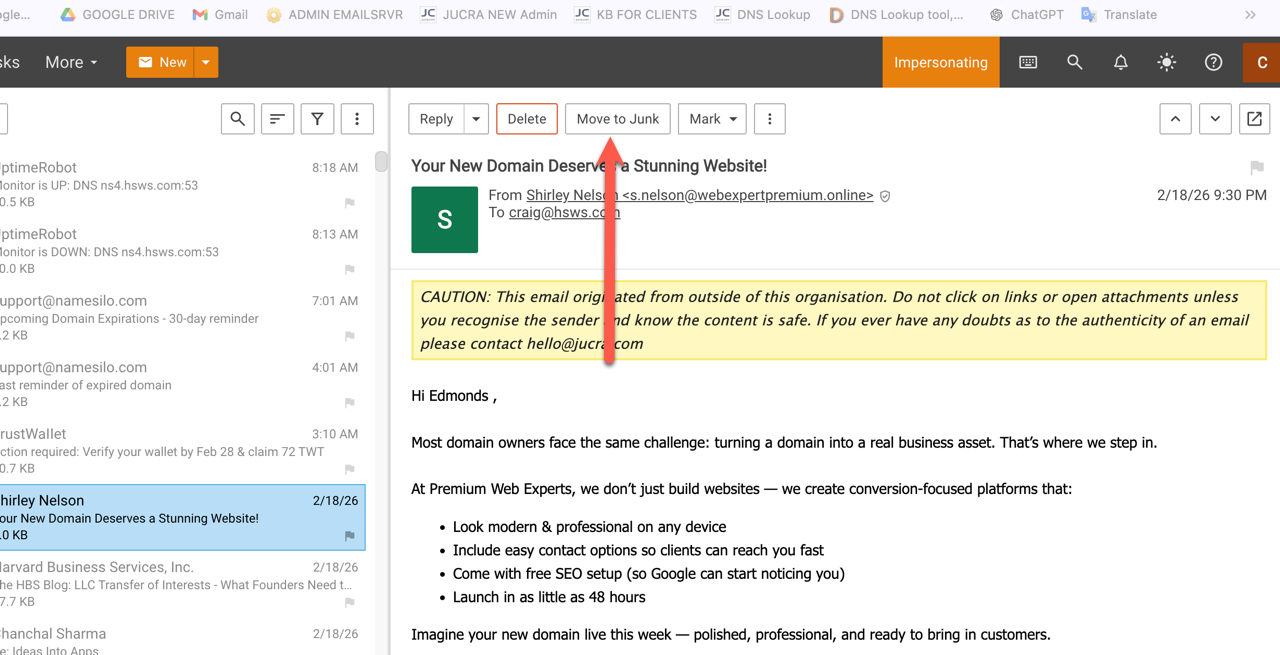
In the top toolbar, click the Move to Junk button.
-
The message will automatically be moved to your Junk Email folder.
-
The system will learn from this action and improve future filtering.
Optional: Block the Sender
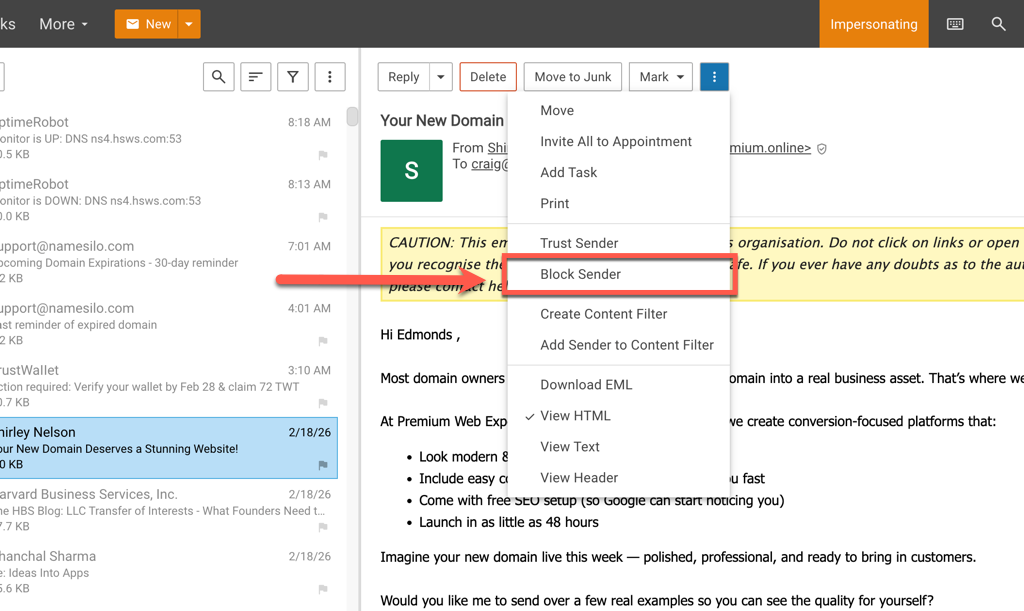
If the message is clearly malicious or repeatedly sent from the same sender:
-
Right-click the message.
-
Choose Block Sender (if available in your permissions).
-
This prevents future emails from that sender from reaching your inbox.
 Important Notes
-
Only mark messages as spam if they are genuinely unsolicited or malicious.
-
Do not mark legitimate newsletters or subscription emails as spam. Instead, use the unsubscribe link inside those emails.
-
Regularly checking and marking spam correctly improves the overall effectiveness of your filtering system.
If you continue receiving large volumes of spam, please contact hello@jucra.com so additional filtering measures can be reviewed.