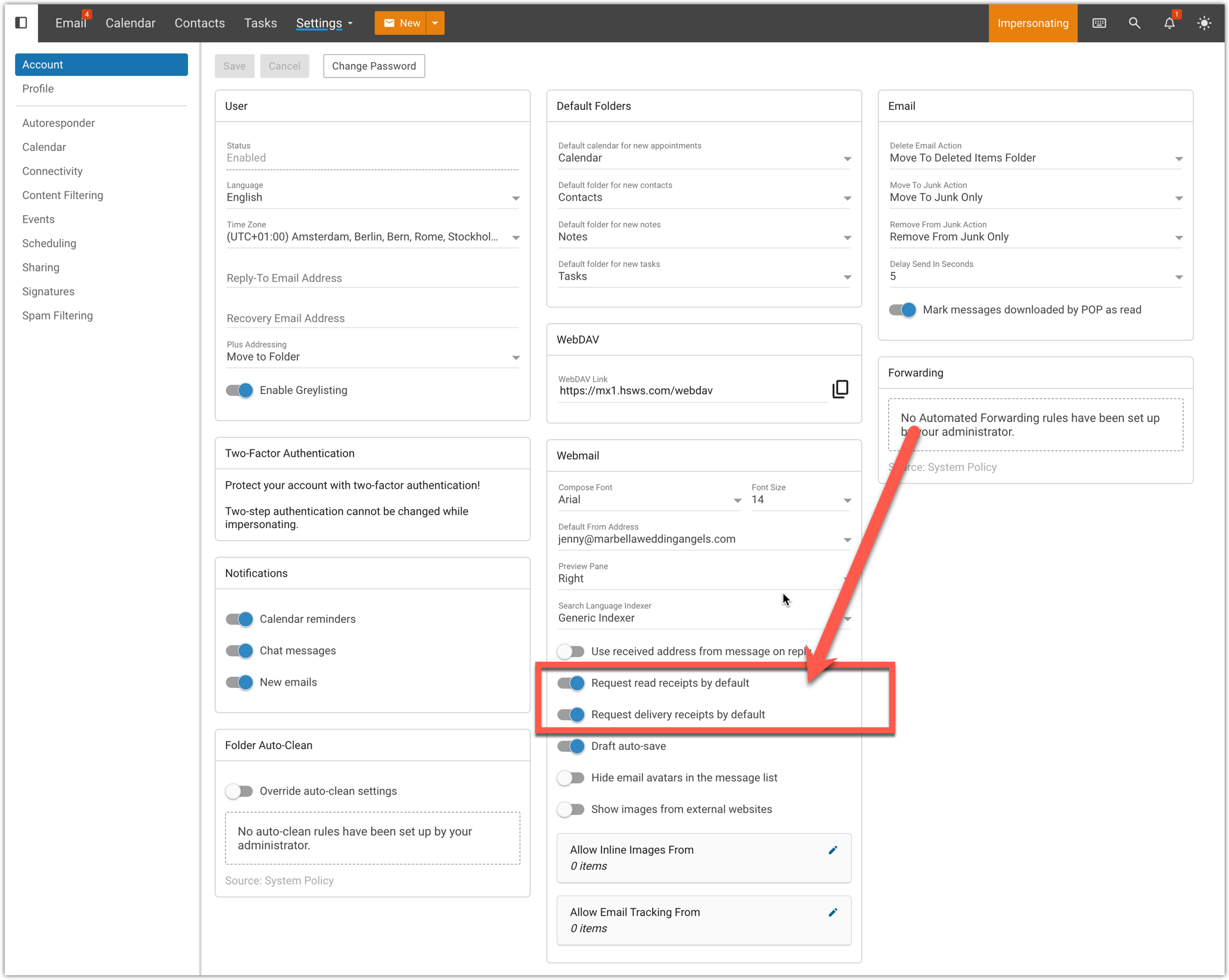
This article will show you how to disable the read receipts and delivery receipts.
For most users, these features are helpful in professional environments where confirmation matters. However, they can be disabled or adjusted if preferred, depending on individual workflow needs.
Why This Can Be Useful
-
Confirming important business emails were successfully delivered
-
Verifying time-sensitive communications
-
Supporting compliance or internal workflow tracking
-
Reducing uncertainty when awaiting critical responses
Why Some Users Find Them Annoying
-
Read receipts require the recipient to approve sending confirmation
-
They can generate additional notification emails
-
Not all email systems support them consistently
|
BOTTOM LINE Delivery receipts confirm that the recipient’s mail server has successfully accepted the message. This does not mean the email has been read, only that it has been delivered to the destination server. Read receipts notify the sender when the recipient opens the message, provided the recipient’s email client supports this feature and the user allows the confirmation to be sent. |
This is an example of a read receipts that arrives in your inbox, if you have this setting enabled.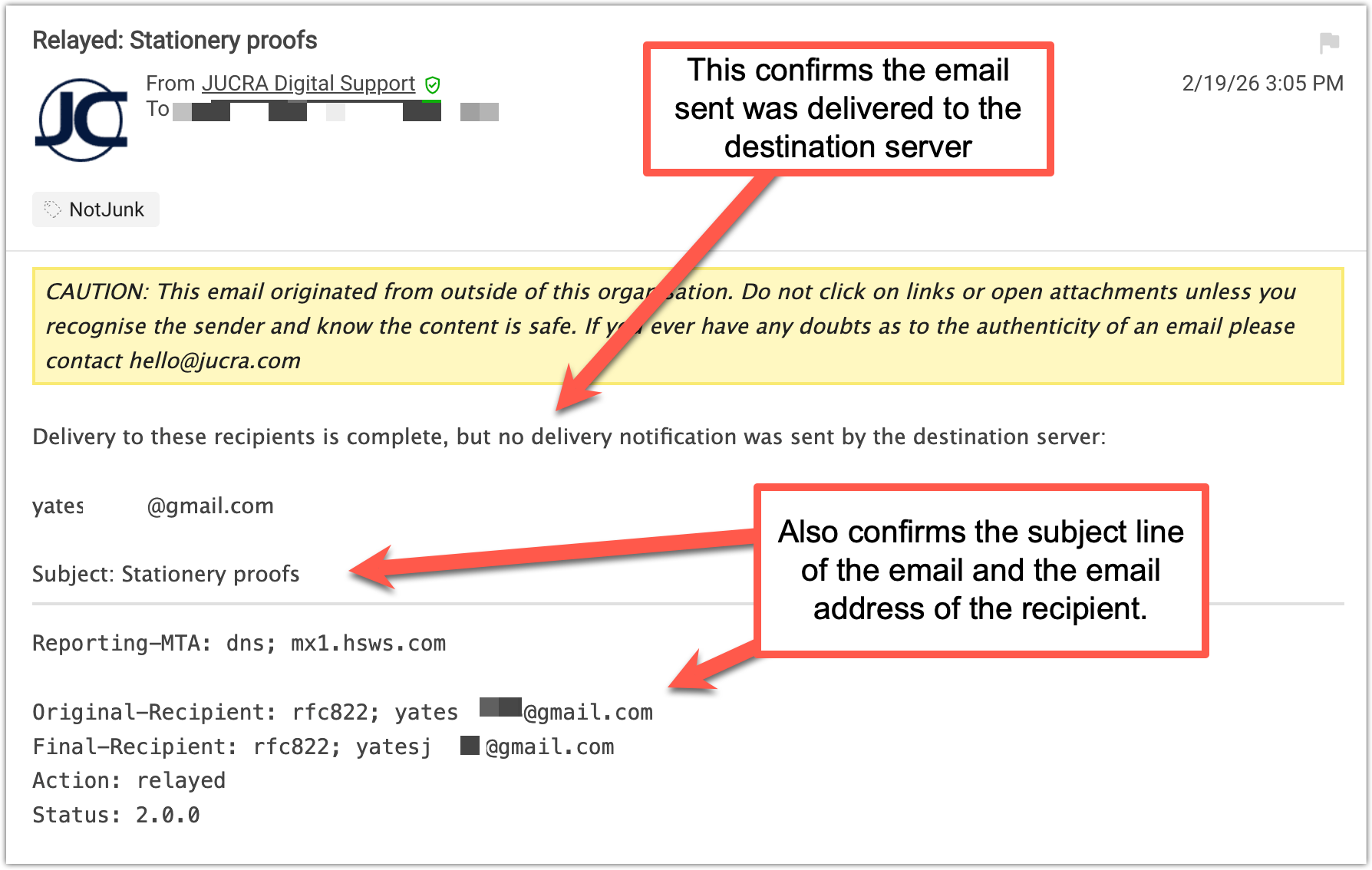
To disable these notifications follow the directions below.
1. Log in to webmail at https://webmail.hsws.com
2. Go to Settings > Account
In there you will see the section to turn off the notifications.
Then just save the settings and the receipts will stop.