
If a folder called INBOX. keeps appearing on your iPhone, it is usually caused by an incorrect IMAP folder setting inside the Mail account on the phone.
This guide will show you how to find the setting and check whether it is causing the problem.
Contents
- What you are looking for
- Step 1, Open your iPhone Mail account settings
- Step 2, Open the advanced IMAP settings
- Step 3, Check the IMAP Path Prefix
- Step 4, Check the special mailboxes
- Step 5, Save the changes
- Step 6, Delete the unwanted INBOX. folder
- If you do not see the IMAP Path Prefix field
- Need help?
What you are looking for
On some iPhones, the Mail account may have an IMAP Path Prefix set incorrectly.
If this field contains INBOX or INBOX., it may cause extra folders such as:
- INBOX.
- INBOX./Sent
- INBOX./Drafts
- INBOX./Trash
In most cases, this field should be left empty.
Step 1, Open your iPhone Mail account settings
- Open Settings on your iPhone.
- Scroll down and tap Apps if shown on your version of iOS, then tap Mail. On some iPhones, you may simply see Mail directly in Settings.
- Tap Mail Accounts or Accounts.
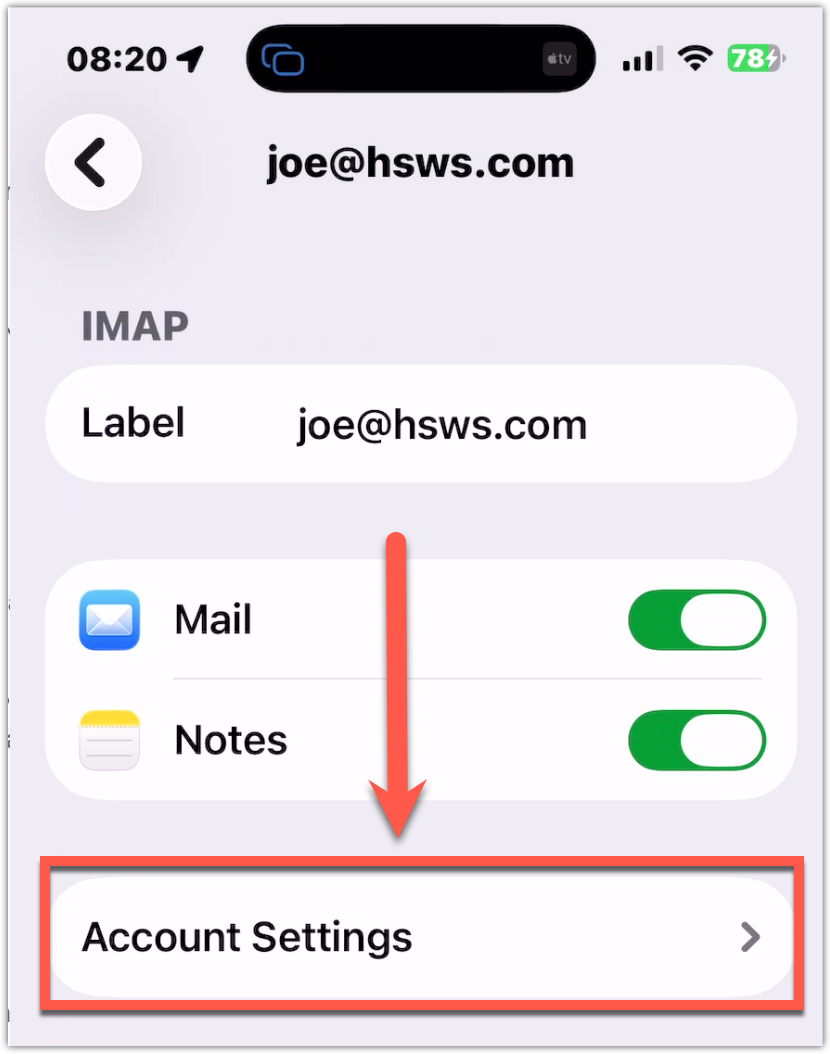
- Tap the email account that is having the problem.
- Tap Account Settings.
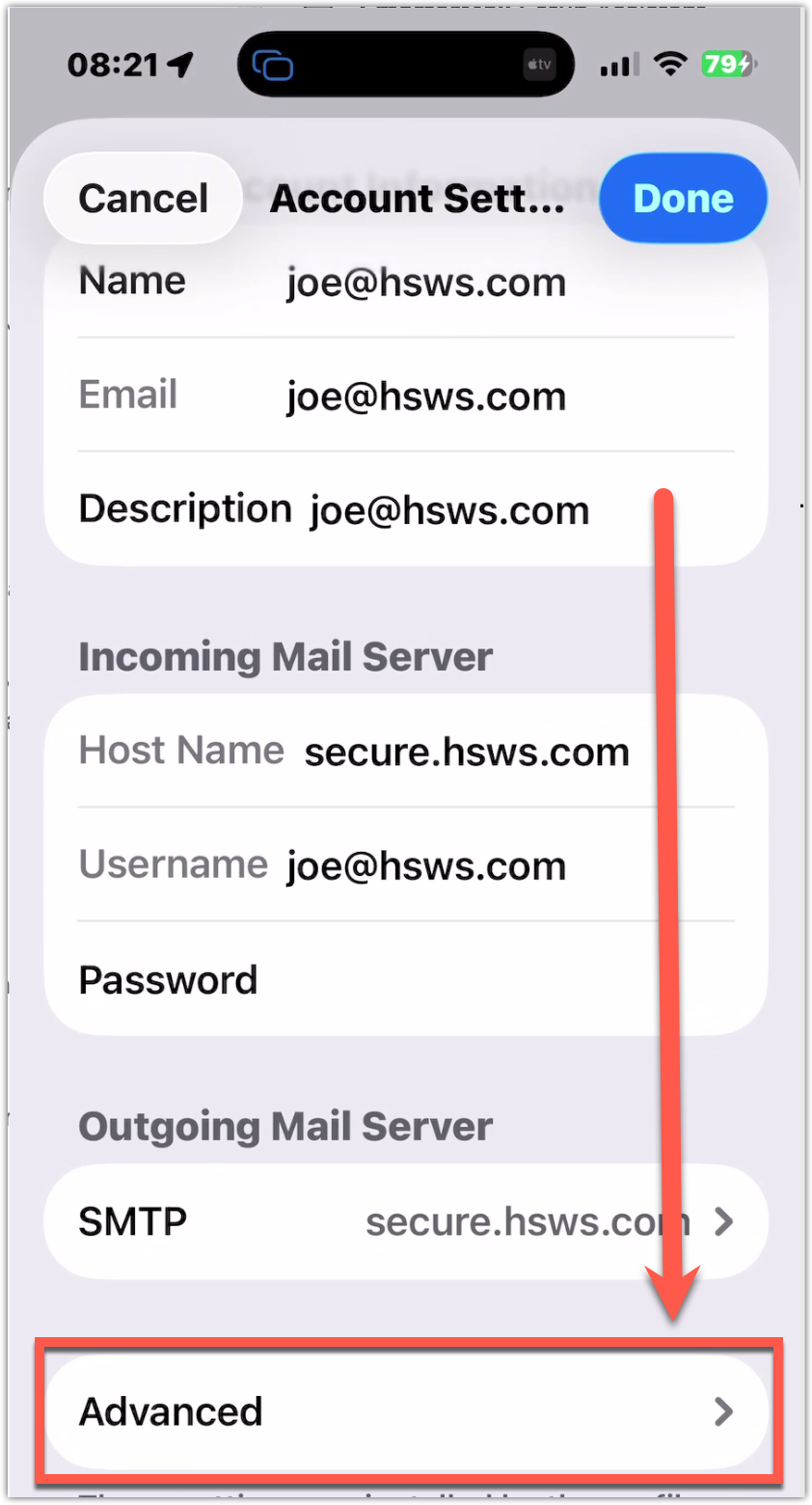
Step 2, Open the advanced IMAP settings
- Scroll down and tap Advanced.
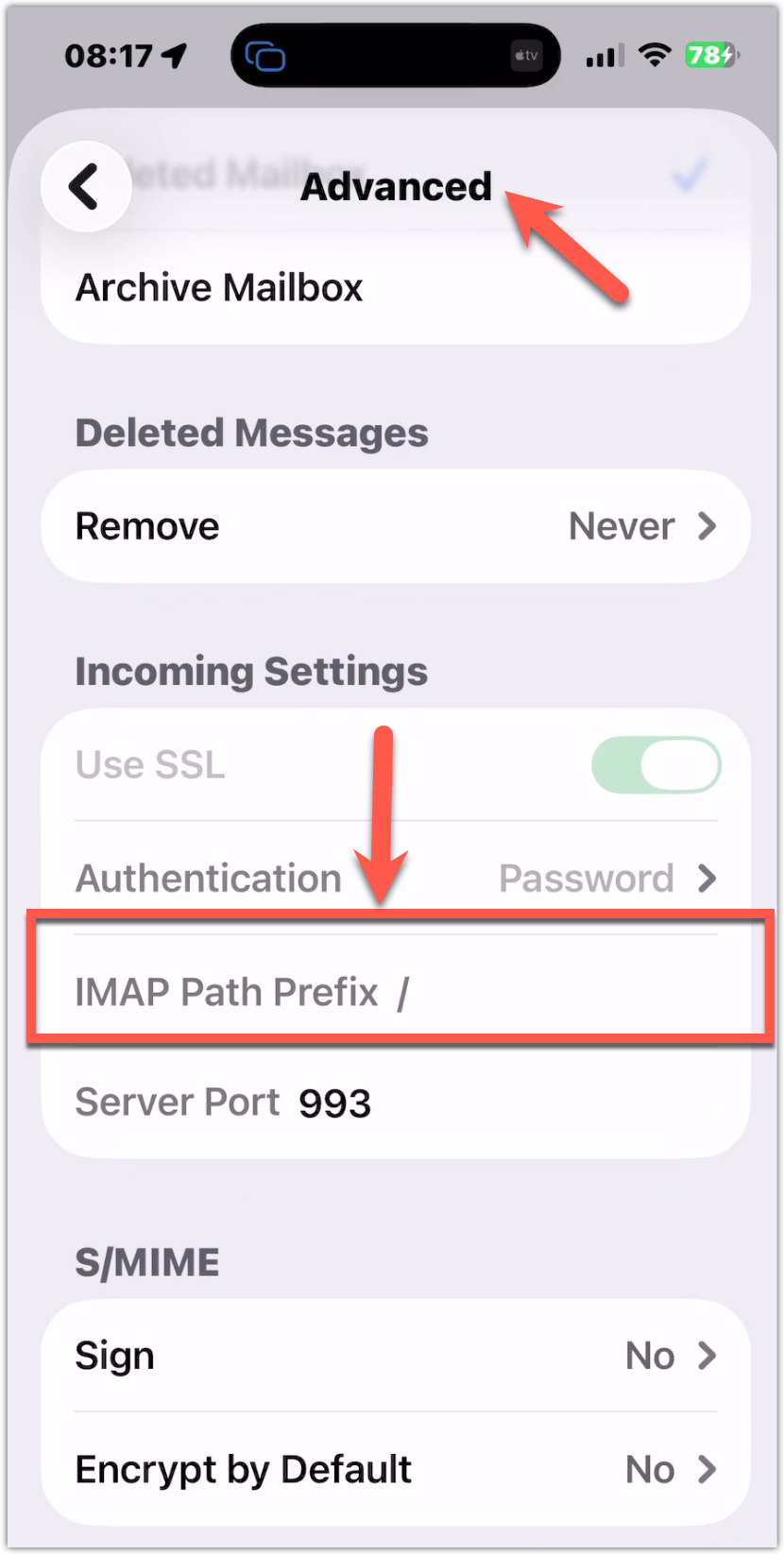
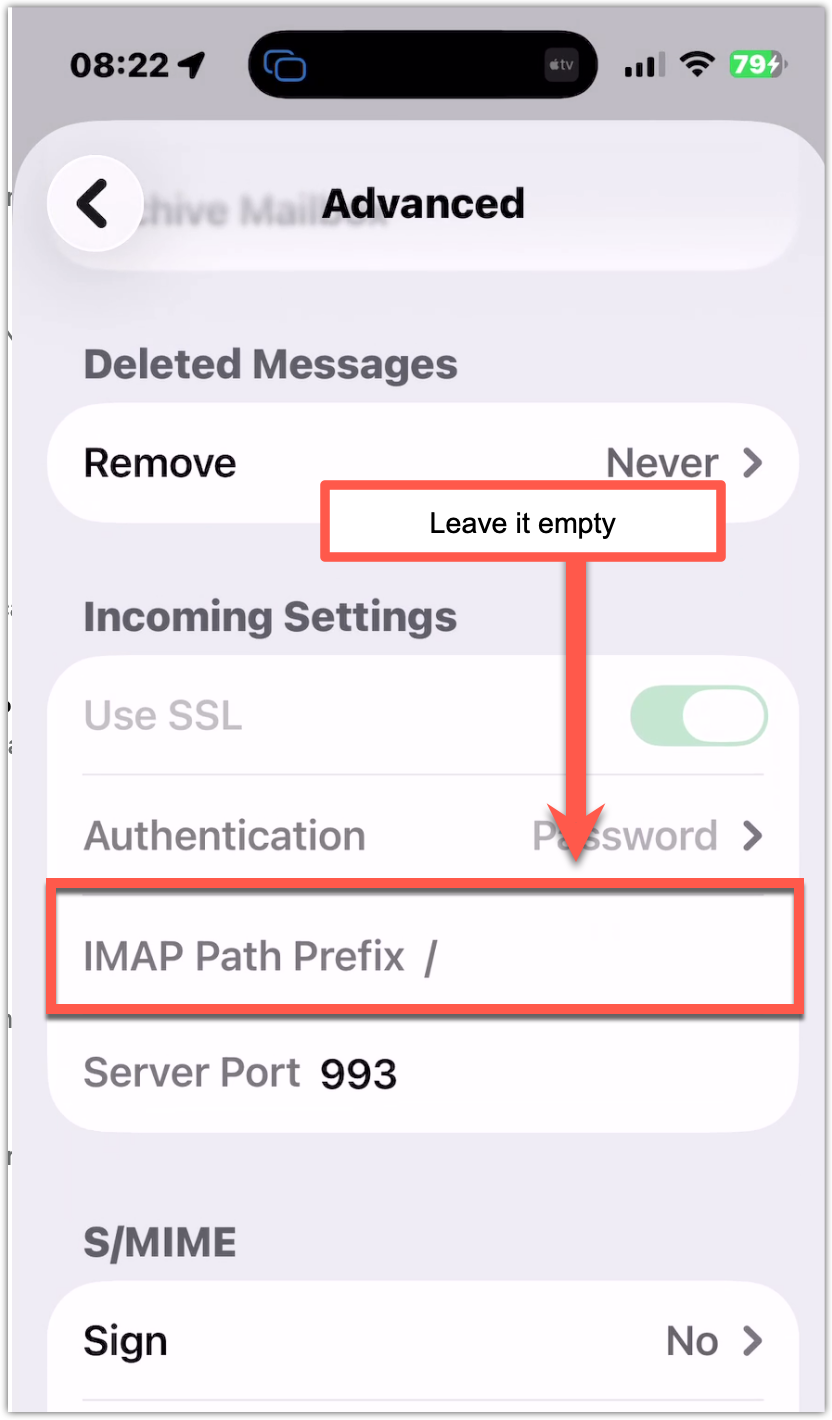
Step 3, Check the IMAP Path Prefix
- Look for a field called IMAP Path Prefix.
- If this field contains INBOX or INBOX., delete the value so the field is completely empty.
- If the field is already empty, leave it as it is.
Correct setting: empty
Incorrect settings: INBOX or INBOX.
Step 4, Check the special mailboxes
While still in the account settings, it is also worth checking that the Sent, Drafts and Deleted folders are mapped correctly.
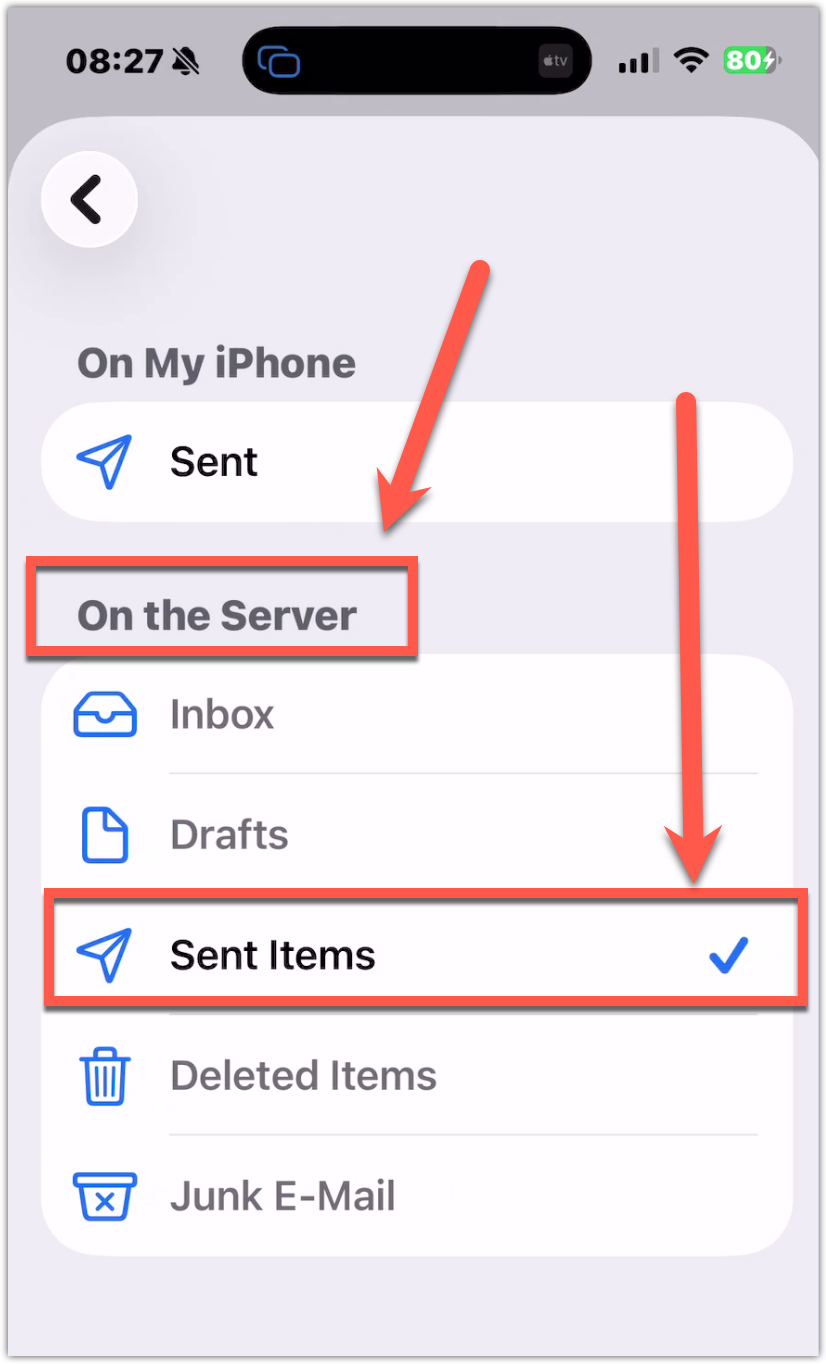
Best practice is to store all Sent, Drafts and Deleted folders on the server, not on your local device.
- In the same Advanced area, look for Mailbox Behaviors.
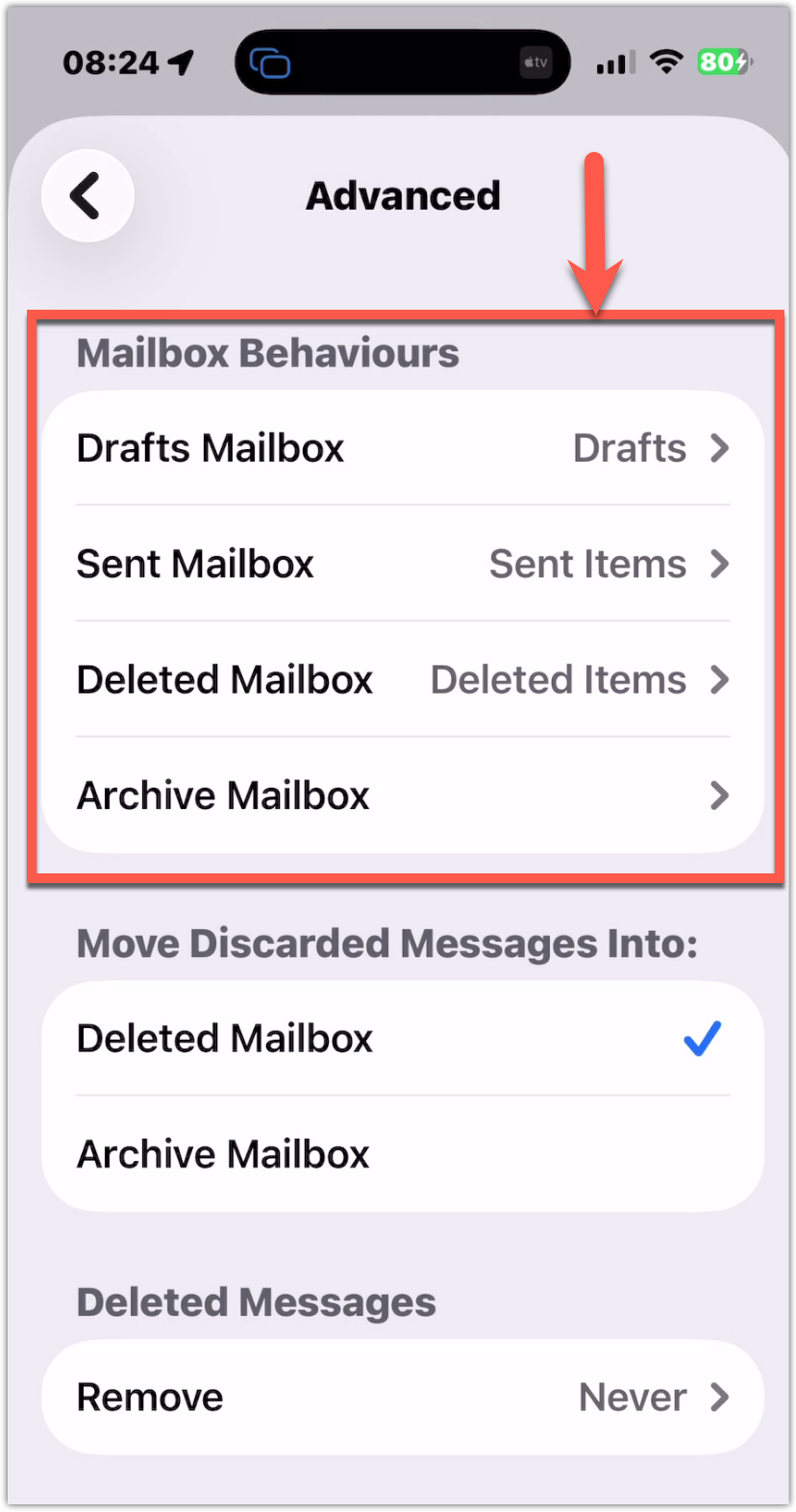
- Drafts Mailbox
- Sent Mailbox
- Deleted Mailbox
- Archive Mailbox, if shown
- Junk Email, if shown
Make sure each one points to the normal server folder and not to anything beginning with INBOX.
For example, the correct folders would normally look like:
- Drafts
- Sent Items
- Deleted Items
- Archive, if shown
- Junk Email, if shown
They should not point to folders such as:
- INBOX./Drafts
- INBOX./Sent
- INBOX./Trash
Step 5, Save the changes
- Tap Back to return to the previous screen.
- If your iPhone shows a Done or Save button, tap it.
Step 6, Delete the unwanted INBOX. folder
After correcting the setting, delete the unwanted INBOX. folder again from the phone or from webmail.
If the iPhone was causing the issue, the folder should now stop coming back.
If you do not see the IMAP Path Prefix field
On some iPhones or account types, this field may not be visible.
If you cannot find it, the easiest solution is usually:
- Delete the email account from the iPhone.
- Restart the iPhone.
- Add the email account again using the correct IMAP settings provided by your email provider.
Need help?
If you are unsure which option to choose, please contact us at hello@jucra.com before making further changes.