
Table of Contents
1. Overview
SmarterMail includes a very powerful and fast search system that allows you to search across your entire mailbox, including:
- Inbox
- Sent Items
- Deleted Items
- Spam / Junk Email folders
- Archive folders
- Custom folders
In many cases, an email is not actually missing, it may simply have been moved into another folder, archived, filtered, or deleted accidentally.
2. Log In to Webmail
Log in to the webmail system at:
Once the page loads, select SmarterMail and sign in using your full email address and password.
3. Open the Search Function
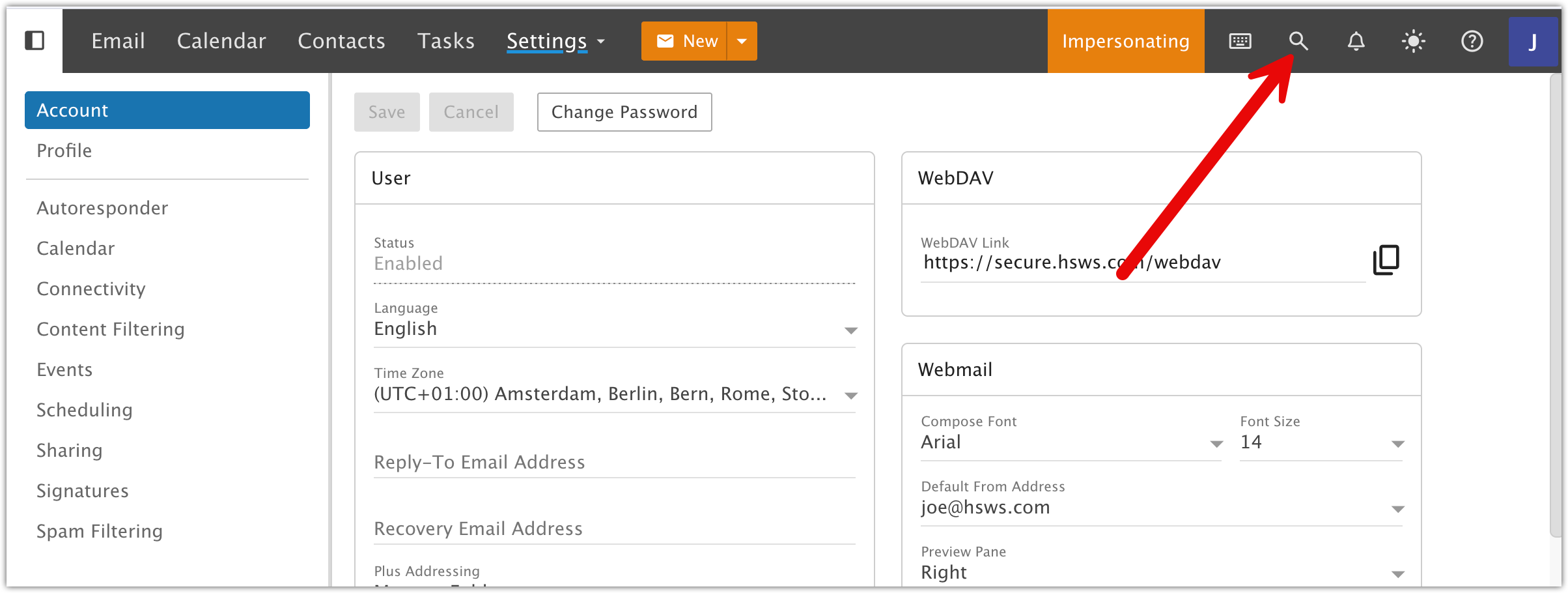
Once logged in, click the magnifying glass icon located in the top-right corner of the webmail interface.
This opens the advanced mailbox search tool.
4. Configure Your Search
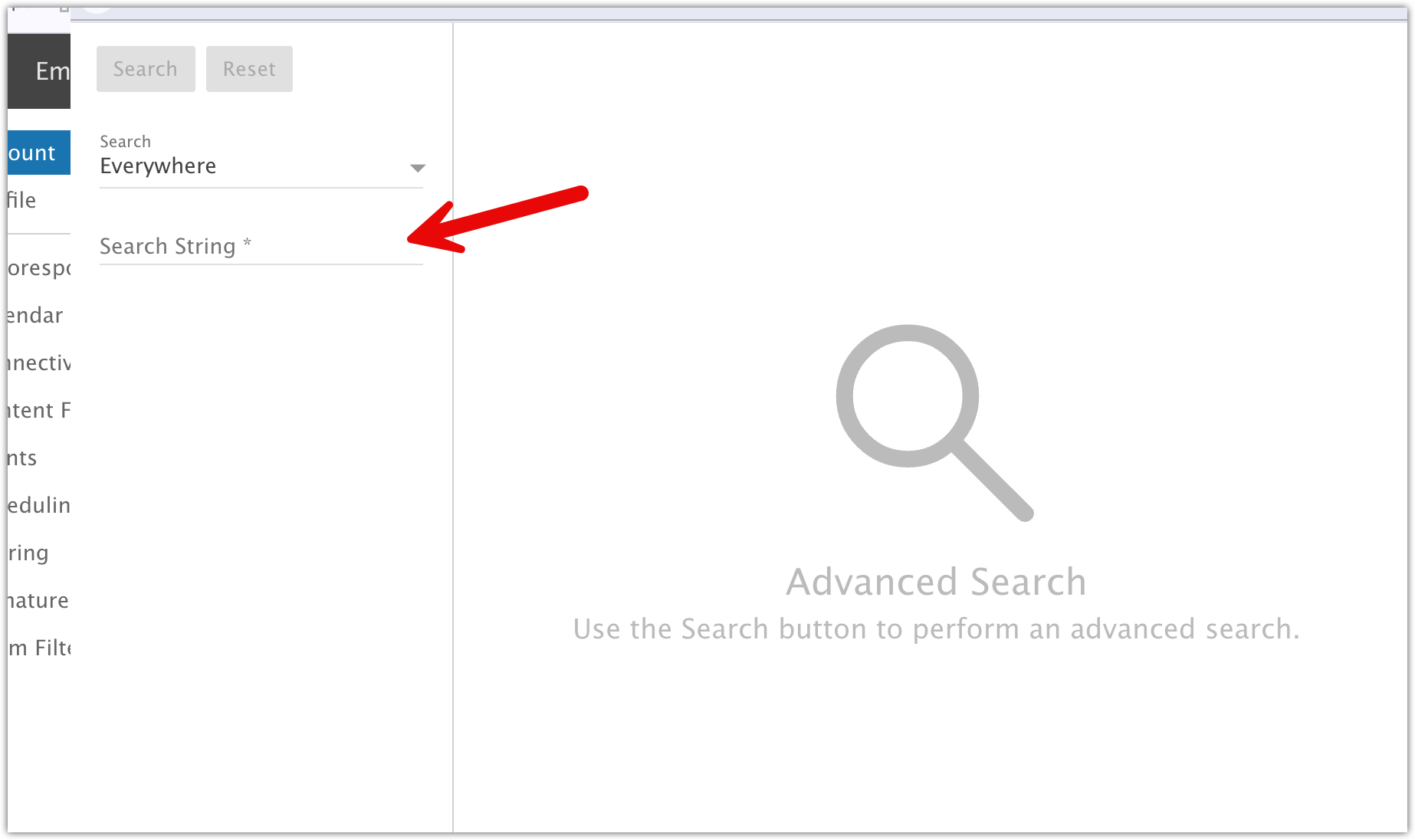
In the search popup window, choose the location you would like to search.
The default option is usually:
You can then enter a search term such as:
- An email address
- A person's name
- A subject line
- A piece of text from the email body
- A keyword or phrase
5. Review the Results
The search results will display:
- The number of matching emails
- The folder location of each email
- The sender and subject line
- The date and time of the message
Clicking on a result will open the email directly.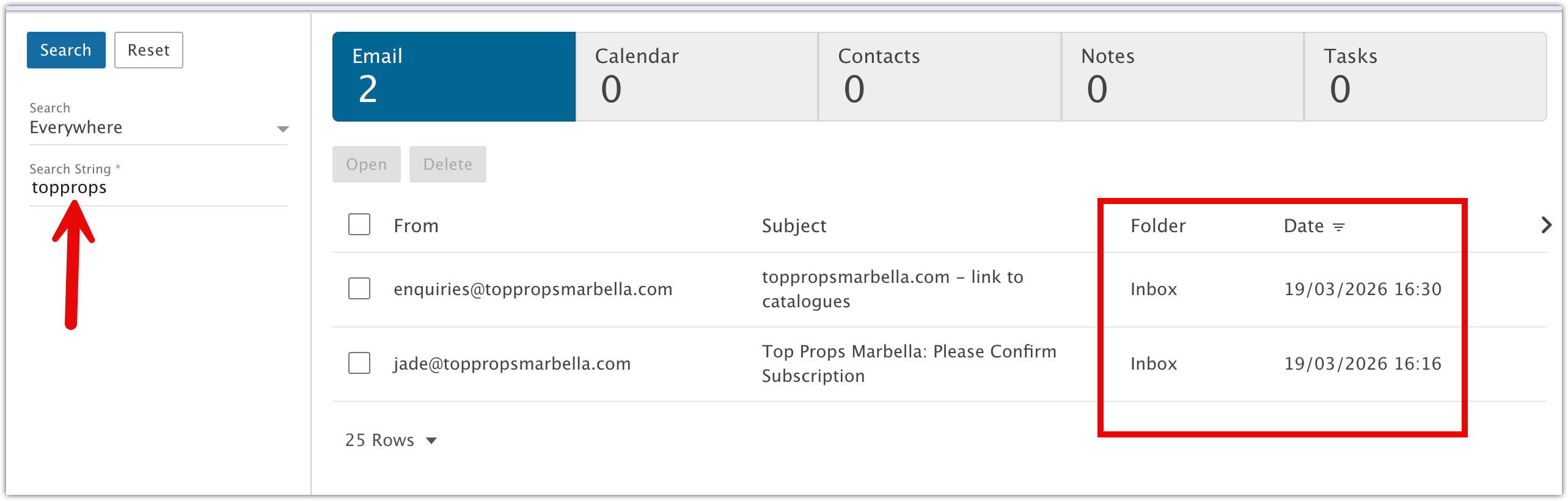
6. Search Tips
If an email cannot be found in your local email software, always search directly within SmarterMail webmail first, as this searches the live mailbox stored on the server.
Additional tips:
- Try searching only part of an email address or subject
- Check the Deleted Items and Junk Email folders
- Search using a date range if available
- Try searching for unique words from the email body