
Our email platform supports both authentication apps and recovery email verification methods. We also provide secure App Passwords for use with Outlook, mobile devices, and other email clients.
Enable Two-Factor Authentication (2FA) for Your Email Account
Two-Factor Authentication adds an extra layer of security to your mailbox. Even if someone discovers your password, they will still require a verification code before they can access your account.
- Authentication App (Recommended)
- Recovery Email Address
If you intend to use the Authentication App method, you must install an authenticator application on your mobile device before beginning setup.
Table of Contents
- Why Use Two-Factor Authentication?
- Download Google Authenticator
- Step 1 - Log In to Webmail
- Step 2 - Open Settings
- Step 3 - Enable Two-Factor Authentication
- Step 4 - Choose Your Verification Method
- Using an Authentication App
- Using a Recovery Email Address
- Understanding App Passwords
- Information for IT Departments
Why Use Two-Factor Authentication?
Passwords can be stolen through phishing emails, malware, data breaches, or simple password reuse.
With 2FA enabled, a successful login requires:
- Your password
- A temporary verification code
This significantly reduces the risk of unauthorised access to your mailbox.
Download Google Authenticator
If you plan to use the Authentication App method, install Google Authenticator on your mobile device before proceeding.


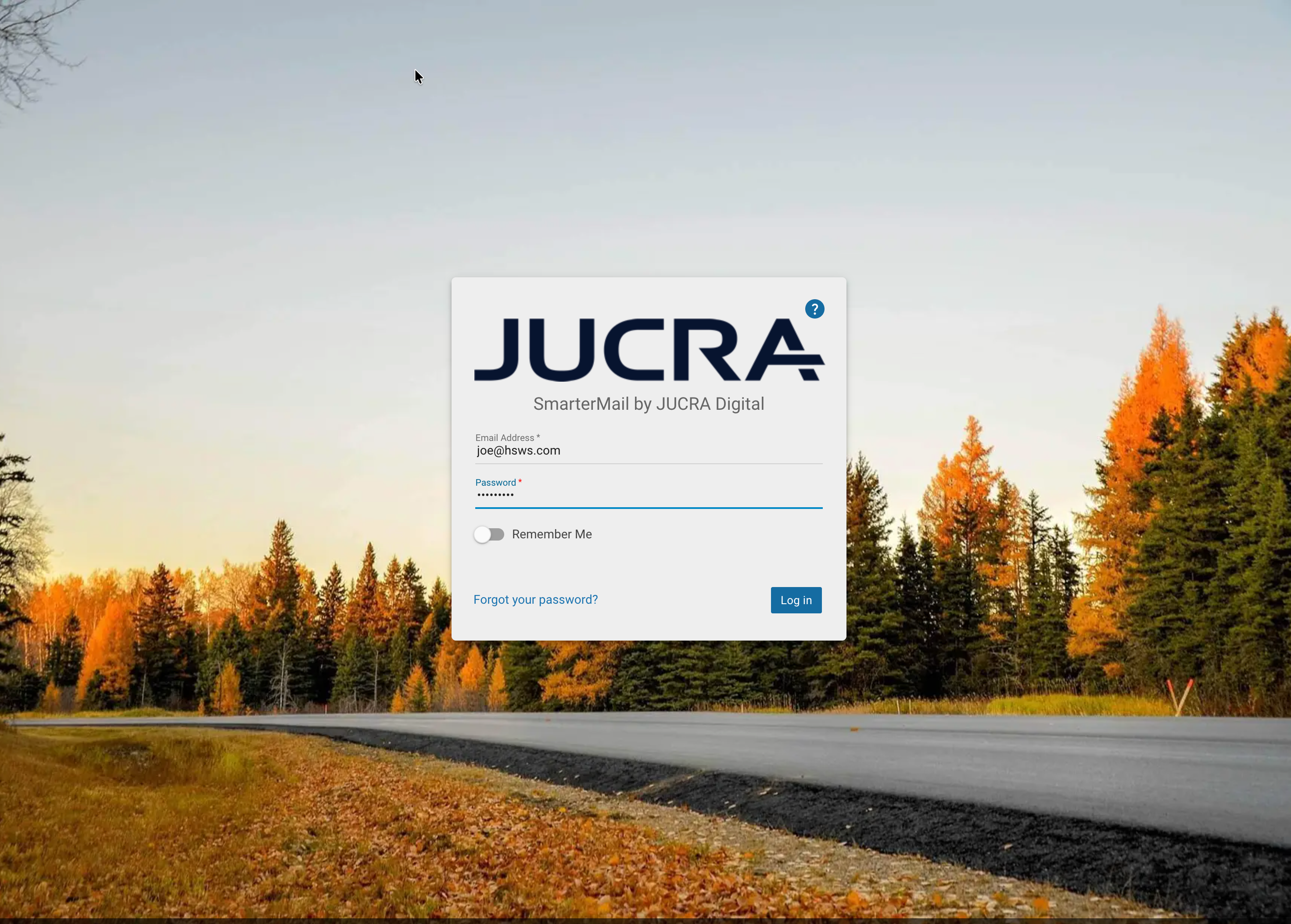
Step 1 - Log In to Webmail
Log in to your webmail account.
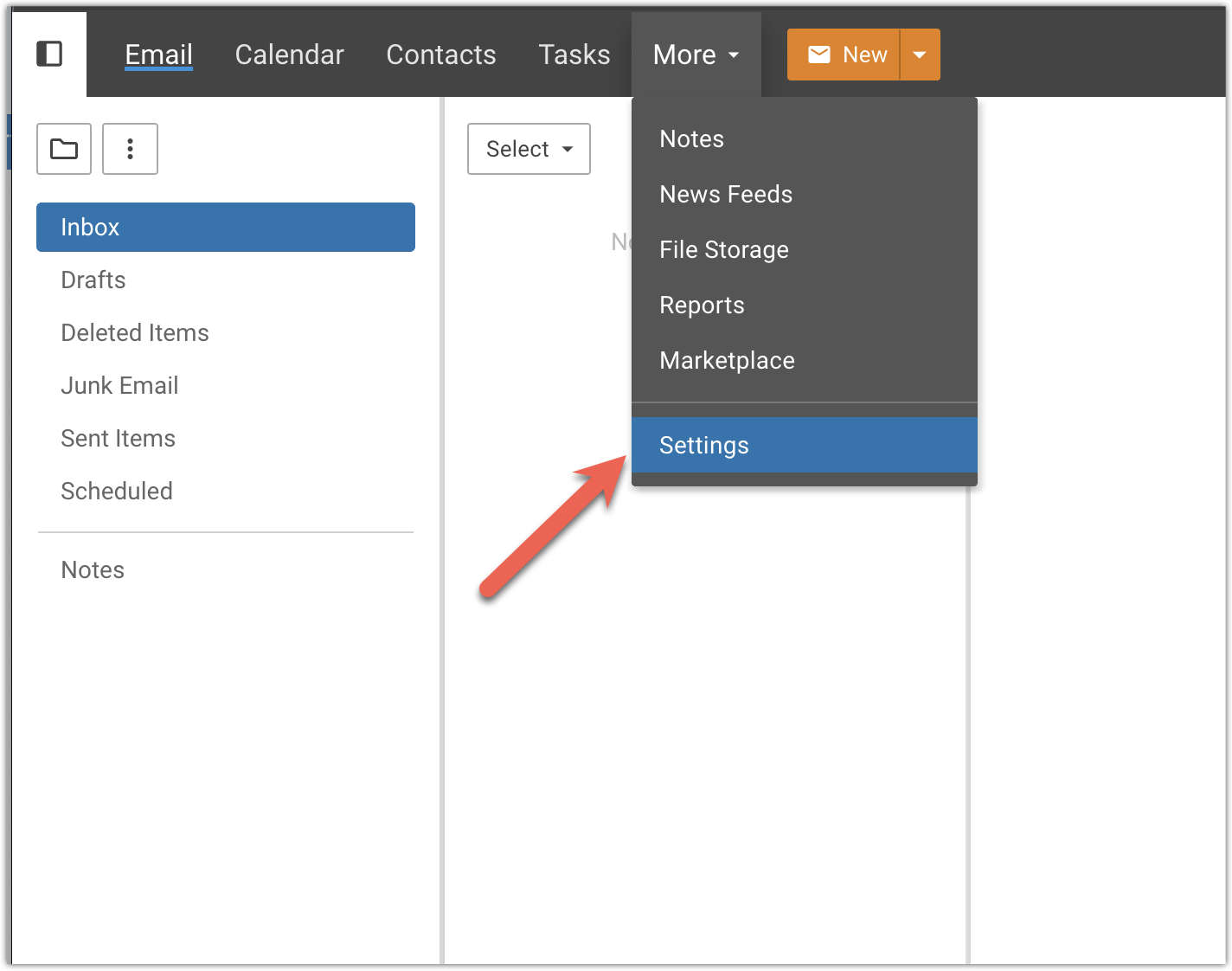
Step 2 - Open Settings
From the top menu, select:
More → Settings
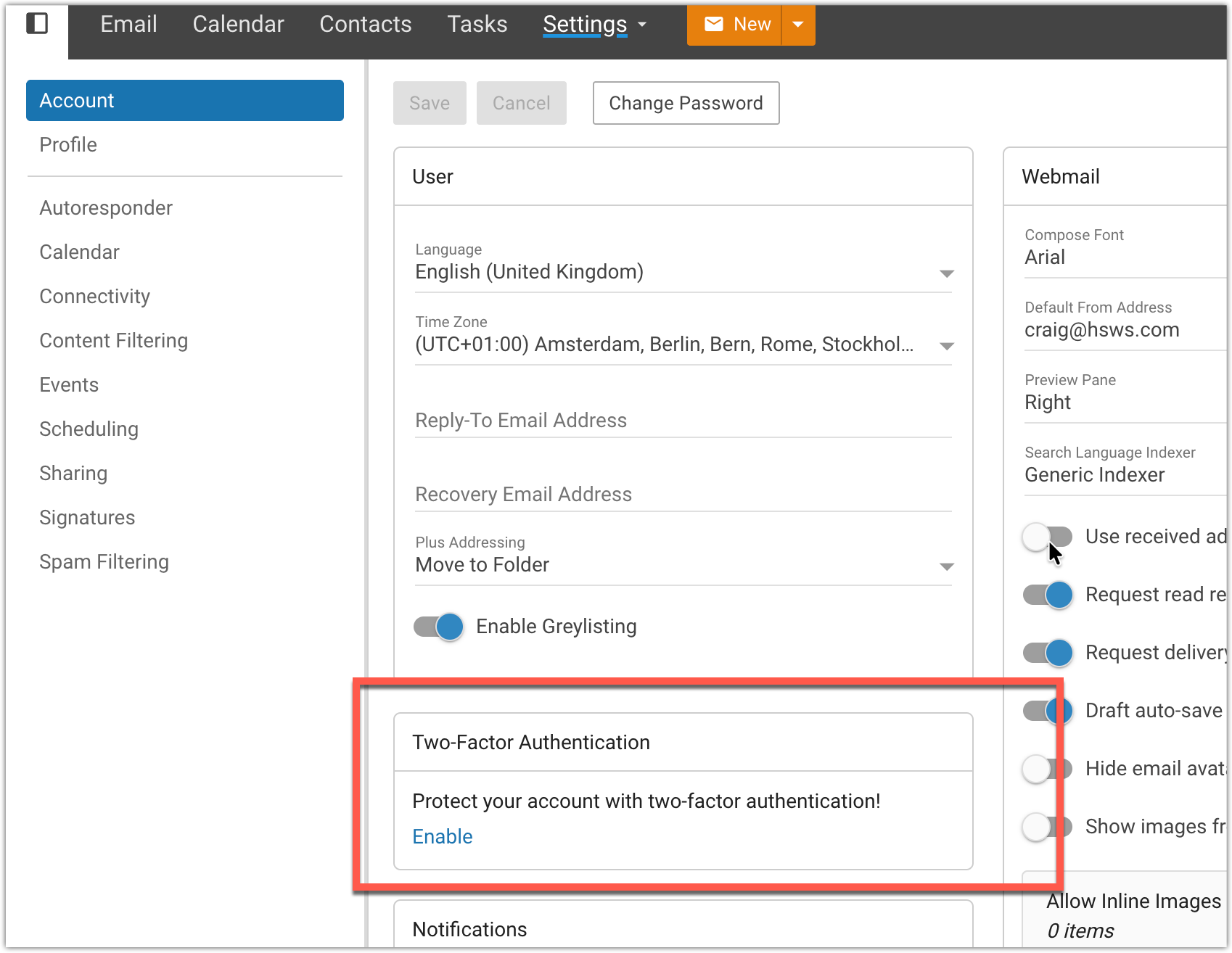
Step 3 - Enable Two-Factor Authentication
Locate the Two-Factor Authentication section and choose to enable it.
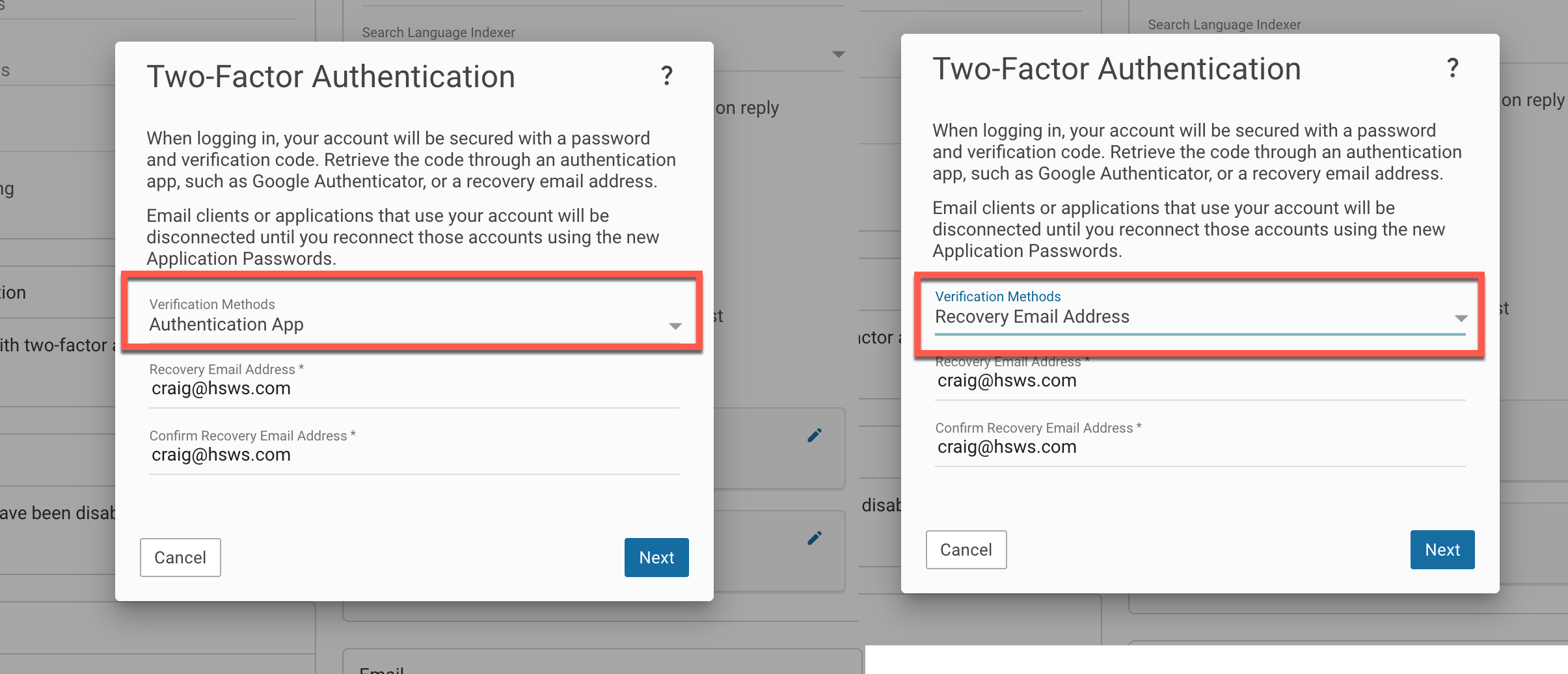
Step 4 - Choose Your Verification Method
You will be presented with two available options:
- Authentication App
- Recovery Email Address
Using an Authentication App (Recommended)
Choose Authentication App and proceed through the setup wizard.
A QR code will be displayed.
Open Google Authenticator on your phone and scan the QR code.
The application will immediately begin generating six-digit verification codes.
Enter the current code shown in the app to complete setup.
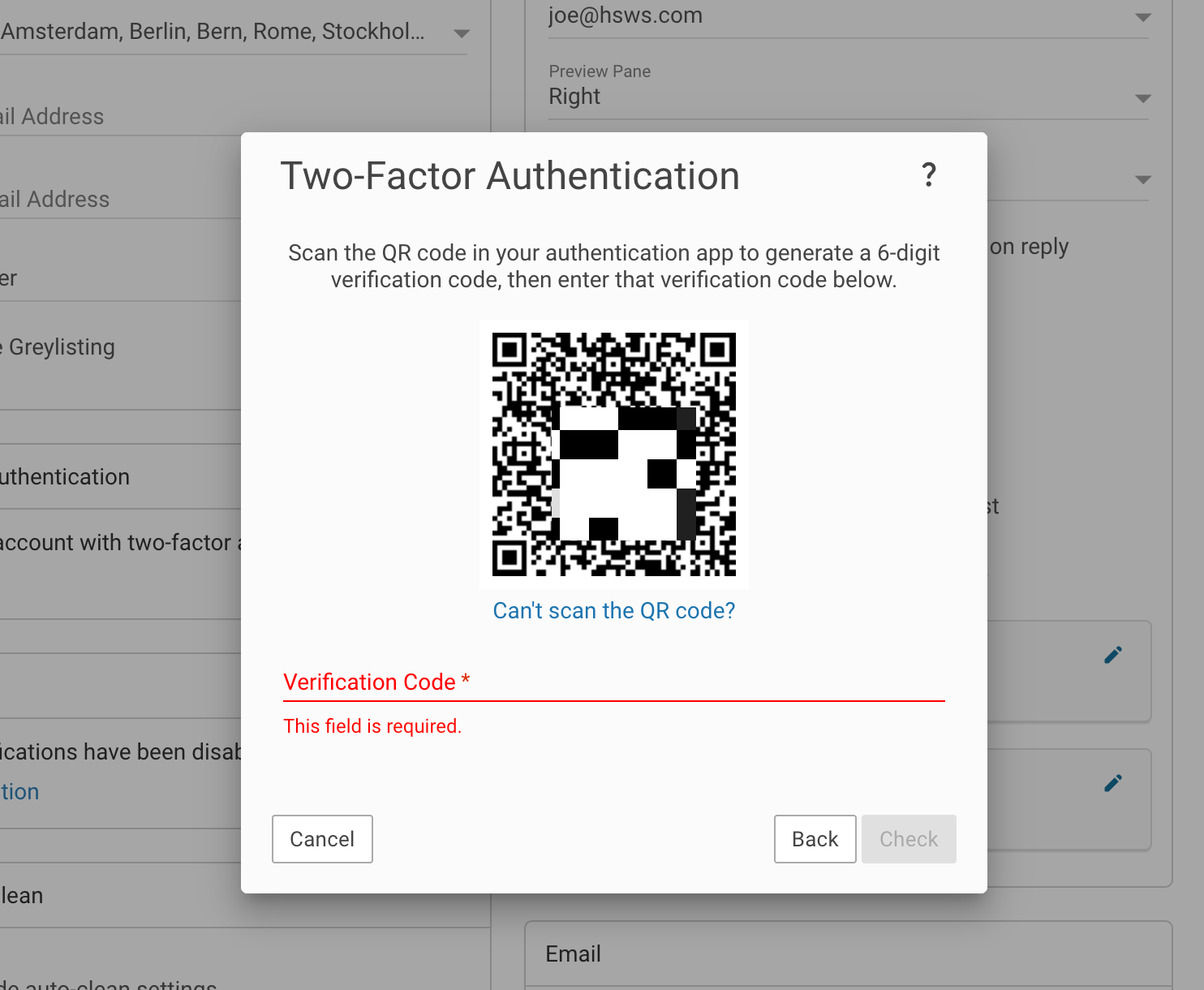
Once verified, Two-Factor Authentication will be enabled for your mailbox.
Using a Recovery Email Address
If you prefer not to use an authentication application, you can choose the recovery email method.
You must provide an alternative email address that is different from the mailbox you are protecting.
For example:
- Mailbox being protected: joe@hsws.com
- Recovery email: joe@gmail.com
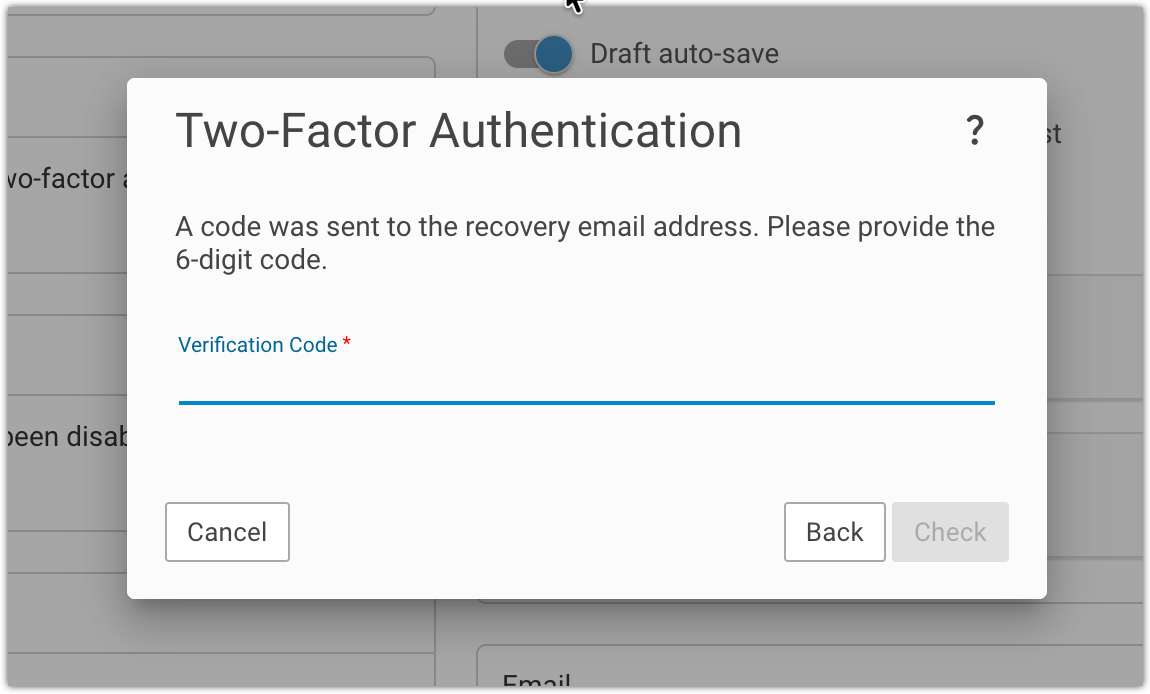
A verification code will be sent to the recovery email address.
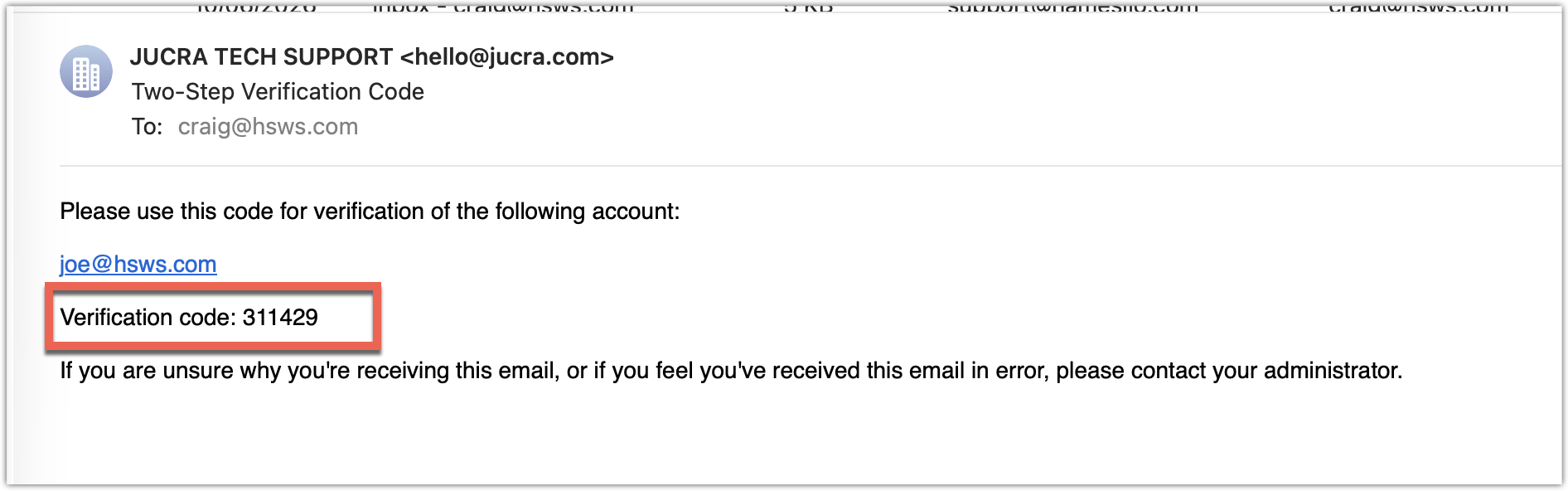
Enter the code to complete the setup process.
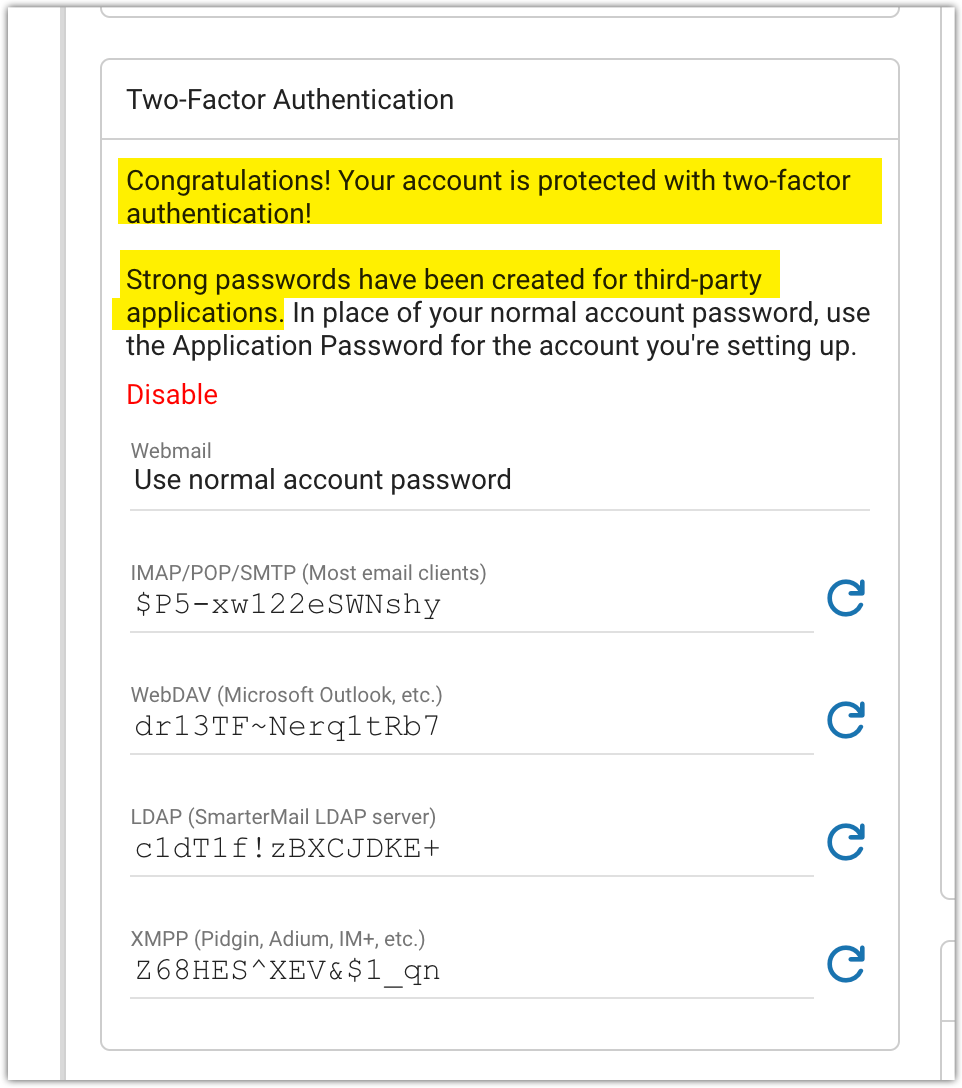
Understanding App Passwords
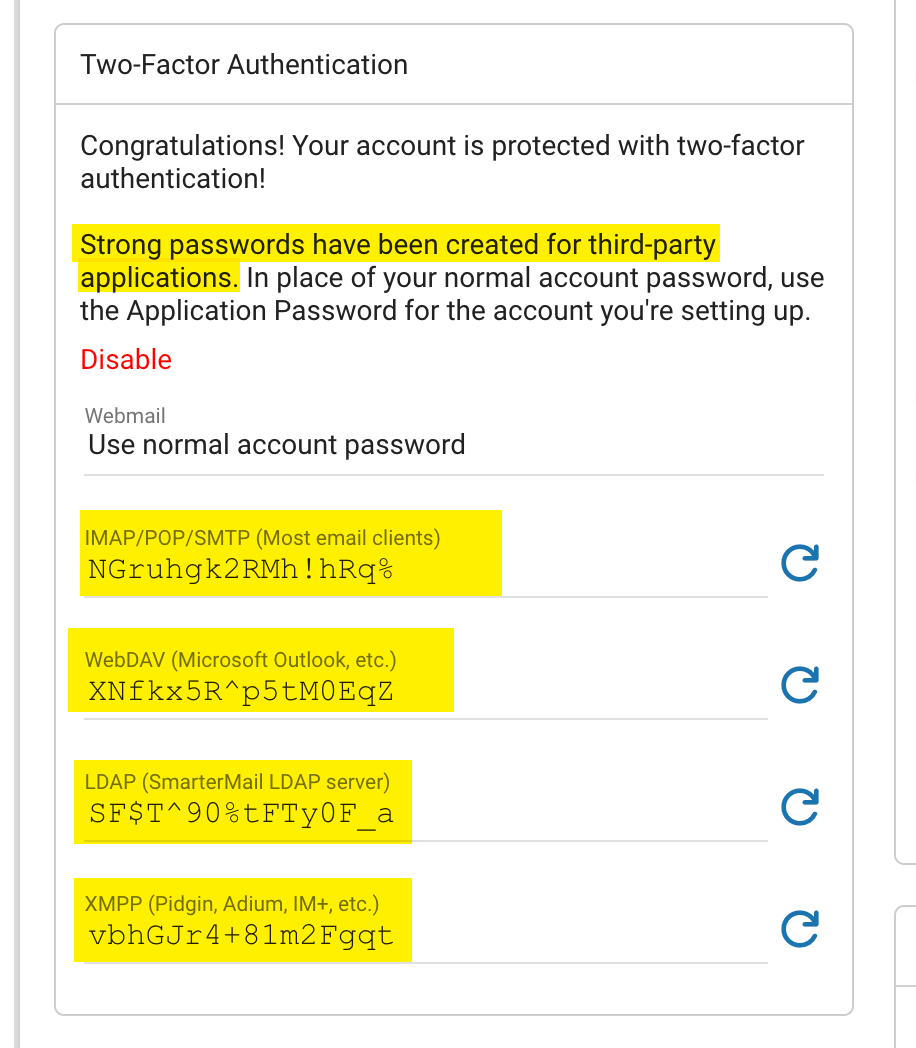
After enabling Two-Factor Authentication, the system can generate secure App Passwords.
App Passwords are special passwords designed specifically for email applications and devices.
Benefits include:
- Your main webmail password remains private.
- Each device can use its own password.
- Passwords can be revoked individually if required.
- Access can continue to work with email clients that do not support interactive 2FA prompts.
If somebody attempts to use an App Password to access Webmail directly, the login will fail.
Information for IT Departments
- Supports Authentication App based MFA.
- Supports Recovery Email based MFA.
- Supports App Passwords for legacy email clients and mobile devices.
- Allows organisations to improve mailbox security without disrupting existing mail workflows.
- Suitable for Outlook, Apple Mail, iPhone Mail, Android Mail and most IMAP, POP and SMTP clients.
We strongly recommend enabling Two-Factor Authentication on all mailbox accounts that contain sensitive business information.